
Send SegMetrics Report Data to Slack
Automatically send SegMetrics report data to your Slack channels using Zapier. This workflow keeps your team informed with regular marketing performance updates delivered directly to Slack.
In this article
- Requirements for the integration
- Creating the Zapier automation
- Setting up the schedule trigger
- Configuring SegMetrics data retrieval
- Setting up Slack notifications
- Testing and activation
What You'll Need
- Zapier account
- SegMetrics account with saved reports
- Slack account with channel access
- SegMetrics API key from Account Settings
Step 1: Create New Zap
- Log in to Zapier
- Click + Create Zap

- Give your Zap a descriptive name (e.g., "Daily SegMetrics Reports to Slack")
Step 2: Set Up Schedule Trigger
Configure when the reports should be sent:
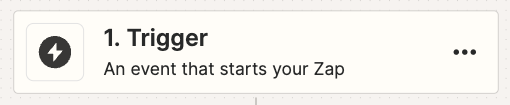
- Click on the Trigger step
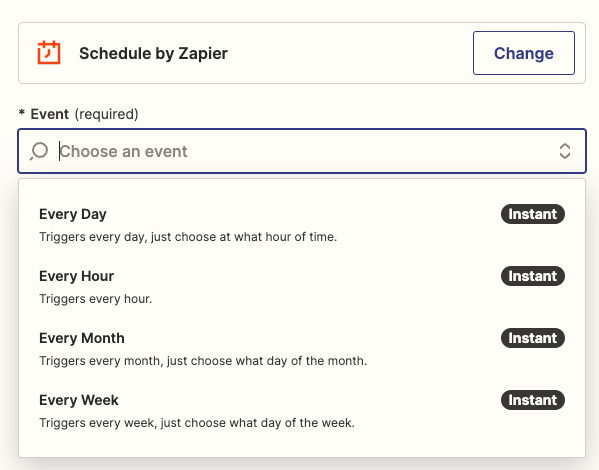
- Search for and select Schedule by Zapier

- For the Event, select your preferred frequency:
- Every Day - Daily reports
- Every Week - Weekly summaries
- Every Month - Monthly reviews
- Click Continue
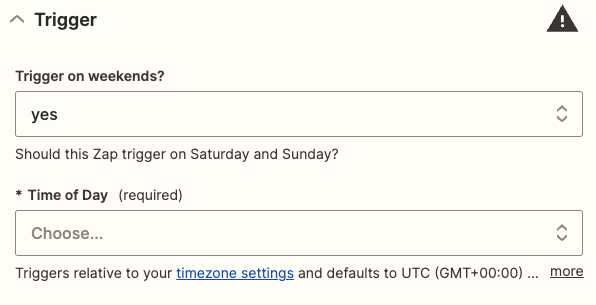
- Configure timing options:
- Choose whether to run on weekends
- Select the time of day to send reports
- Set timezone preferences
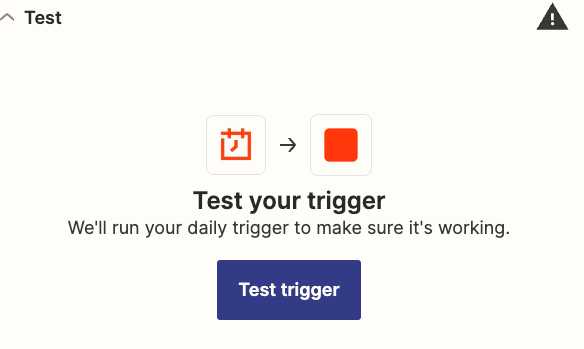
- Click Continue and Test trigger
Step 3: Add SegMetrics Data Action
Set up the webhook to pull report data from SegMetrics:
- Click + Action to add a new step
- Search for and select Webhooks by Zapier
- For the Event, select GET
- Configure the webhook URL:
- Base URL:
https://api.segmetrics.io/ - Add your specific report path (copy from your saved SegMetrics report URL, starting from the account ID)
- Example:
https://api.segmetrics.io/aMnejL/report/revenue/117
- In Headers, add authentication:
- Key:
Authorization - Value: Your SegMetrics API key
- Click Continue and Test Step
Step 4: Add Slack Action
Configure Slack to receive the report data:
- Click + Action to add another step
- Search for and select Slack
- For the Event, select Send Channel Message
- Click Continue
- Connect your Slack account if not already connected
- Configure the message:
- Channel Name: Select your target Slack channel
- Message Text: Customize your message format using data from the webhook step
- Add any additional formatting or parameters
- Click Continue and Test Step
[Image placeholder: Screenshot of Slack action configuration showing channel selection dropdown and message text field with data mapping options]
Step 5: Test and Activate
- Run a complete test of your Zap to ensure it works correctly
- Check that the message appears in your Slack channel with the expected data format
- If the test is successful, click Publish to activate your Zap
Your SegMetrics reports will now be automatically sent to Slack according to your schedule.
Frequently Asked Questions
Q: Can I send different reports to different Slack channels?\ A: Yes, create separate Zaps for each report-channel combination with different webhook URLs and Slack destinations.
Q: What if my report format changes in SegMetrics?\ A: You may need to update your Zap configuration to match any new data structure or field names.
Q: Can I customize the message format sent to Slack?\ A: Absolutely. In the Slack action step, you can fully customize the message content, formatting, and include specific data fields from your SegMetrics reports.
Q: How do I find my SegMetrics API key?\ A: Go to Account Settings in SegMetrics. Your API key will be displayed in the account information section.
Q: Can I include charts or graphs in the Slack messages?\ A: Slack messages are text-based, but you can include formatted data, links back to SegMetrics reports, or use Slack's formatting options to make the data more readable.