
How to Show Contacts Beyond a Date Range
Understanding when to view all contacts versus filtering by creation date is essential for accurate reporting in SegMetrics. This guide shows you how to view your entire contact database and explains when to apply date range filters for specific analysis.
Viewing All Contacts Regardless of Creation Date
To view your entire contact database without date restrictions, use the "Anytime" setting on the Contact Created filter.
Step 1: Open a New Contact Report
Navigate to Contacts > New Report in your SegMetrics account.
Step 2: Add Contact Attributes Filter
Click +Add Filter and select Contact Created.
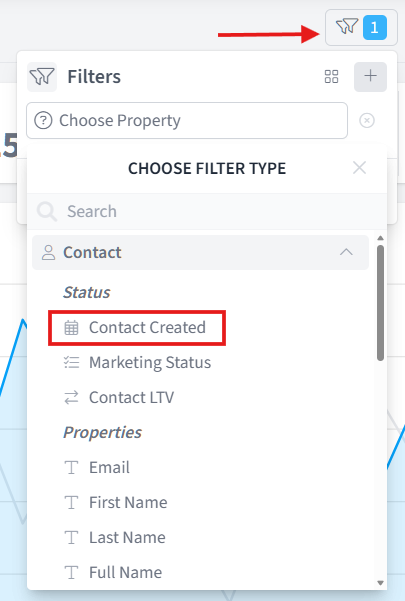
Step 3: Select Contact Created
The filter will default to "In date range." Select the calendar symbol
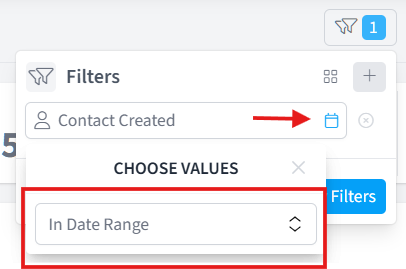
Step 4: Change to Anytime
Click the date range dropdown and select Anytime.
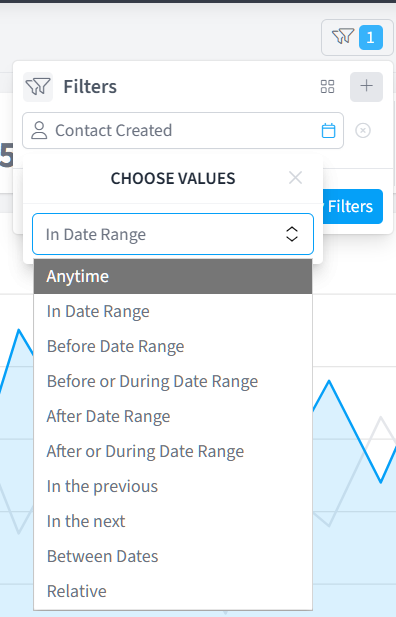
The report will now display every contact in your CRM, regardless of when they were created. The report may take time to load depending on your total contact count.
When to View All Contacts vs. Filtered Contacts
Understanding the difference between viewing all contacts and filtering by creation date is crucial for accurate analysis.
View All Contacts When:
Analyzing lifetime value: Track total revenue generated by contacts who clicked specific ads or entered through particular campaigns, regardless of when they joined your list.
Measuring long-term campaign performance: See how campaigns continue to generate revenue months or years after initial contact creation.
Reviewing total database engagement: Understand overall engagement patterns across your entire contact list.
Tracking conversion cycles longer than your default date range: Identify purchases that occur well beyond typical conversion windows.
How Reports Behave Without Contact Created Filters
In most report types (Orders, Engagement, etc.), contacts appear based on the event date, not their creation date:
- Orders Reports: Show all contacts who made purchases within the report date range, regardless of when they became contacts
- Engagement Reports: Display all contacts who engaged within the report date range, regardless of contact age
- Acquisition Reports: Track when contacts were first created in your CRM
Important: Only the Acquisition (New Leads) report filters by Contact Created date by default. Other report types filter by the event being measured.
Apply Contact Created Filters When:
Performing cohort analysis: Compare how contacts from different time periods perform (e.g., "Do January contacts convert better than February contacts?")
Measuring campaign effectiveness: Track how quickly new contacts convert after joining your list.
Analyzing onboarding performance: Evaluate conversion rates for recently acquired contacts.
Calculating accurate customer acquisition costs: Match ad spend periods with corresponding new contact acquisition.
Applying Contact Created Filters for Cohort Analysis
When you need to analyze a specific group of contacts based on when they joined your system, use the Contact Created filter with custom date ranges.
Example: Orders from New Contacts Only
To see purchases made only by contacts who joined in the last 30 days:
- Open an Orders Report
- The report will show all orders within your selected date range by default
- Click +Add Filter and select Contact Attributes
- Choose Contact Created
- Set to In date range
- The report will now show only orders from contacts created within your report date range
Example: Separate Date Ranges for Events and Contacts
To see July orders from contacts who joined in June:
- Set the main report date range to July
- Add Contact Attributes > Contact Created filter
- Click the date range selector on the Contact Created filter
- Select Between Dates
- Set the date range to June
[Image placeholder: Screenshot showing date range options including "Between Dates" selection]
This allows you to maintain the main report date range for order events while filtering contacts by a completely different creation period.
FAQs
Q: What's the difference between a lead, contact, opt-in, and customer?
A: A lead is a user imported from your CRM who may not have made a purchase. A contact is interchangeable with either a lead or customer. An opt-in is anyone who entered your CRM (through signup or purchase). A customer is a contact who made a purchase. All customers are leads, but not all leads are customers.
Q: Why don't my Orders Reports filter by Contact Created automatically?
A: Orders Reports show purchases based on when orders occurred, not when contacts were created. This lets you see lifetime value from all contacts who purchased during a period. Add a Contact Created filter if you specifically need to analyze purchases from new contacts only.
Q: How can I see the long-term value of a specific ad campaign?
A: Set your Contact Created filter to match when the campaign ran, then set other event filters (like "Order Created") to "Anytime." This shows all revenue generated by contacts acquired during the campaign, regardless of when they purchased.
Q: Will viewing all contacts slow down my reports?
A: Reports with larger datasets may take longer to load. If you're analyzing millions of contacts, consider applying filters to narrow your focus and improve load times.
Q: Can I save reports with the "Anytime" setting?
A: Yes. Save any report configuration, including those with "Anytime" filters, for quick access to frequently used analyses. Saved reports retain all filter settings.