
Sharing Dashboards
Dashboard sharing provides access to a public link that enables anyone with that link to view your dashboard without needing to log into SegMetrics. Shared dashboards don't have navigation menus and auto-refresh their data, making them ideal for company-wide displays, presentations, or embedding in other reporting tools.
Requirements
- An active SegMetrics account
- At least one custom dashboard created
- Account-level dashboard sharing enabled
Enabling Dashboard Sharing
Before you can share individual dashboards, you must enable dashboard sharing for your entire account:
- Access Account Settings - Click on Account Settings
- Enable Dashboard Sharing - Click on the Enable Dashboard Sharing switch
- Save Changes - Click Save Changes to activate sharing functionality\
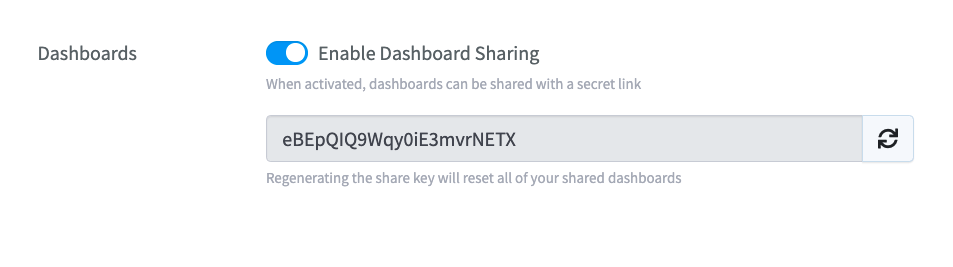
Note: When activated, dashboards can be shared with a secret link that includes your account's unique share key.
Sharing a Specific Dashboard
Once dashboard sharing is enabled for your account, you can share individual dashboards:
- Navigate to Dashboards - Click on Dashboards in the main navigation
- Select Dashboard - Choose the dashboard you would like to share
- Access Share Menu - Click on the 3 dots menu and select Share
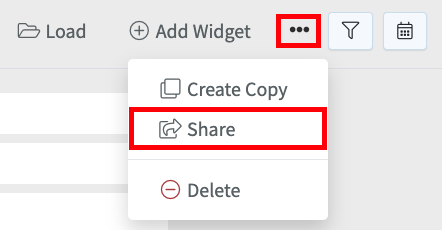
- Copy Share URL - The URL displayed in the window is the publicly accessible link you can share
The shared dashboard will:
- Display only that specific dashboard
- Auto-refresh data automatically
- Have no navigation menus or editing capabilities
- Be accessible to anyone with the link (no login required)
Managing Shared Dashboard Security
Invalidating All Shared Dashboards
If you need to invalidate all existing shared dashboard links while maintaining the ability to share dashboards in the future, you can regenerate your account's Share Key:
- Access Account Settings - Click on Account Settings
- Regenerate Share Key - Click on the Refresh icon next to the Share Key
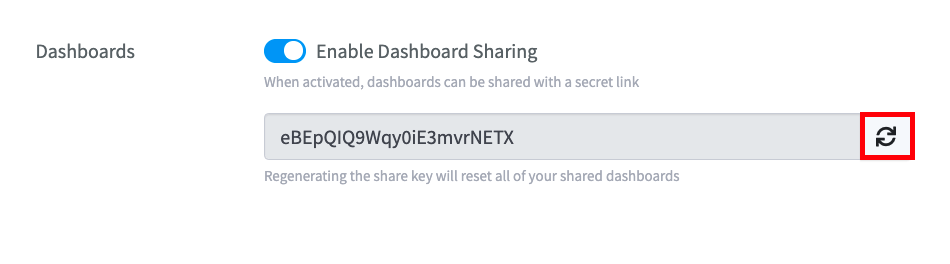
- Save Changes - Click Save Changes to apply the new share key
Important: Regenerating the Share Key will create new links for all your existing dashboards, making all previously shared links inactive.
Disabling Dashboard Sharing
To completely disable dashboard sharing:
- Navigate to Account Settings
- Turn off the Enable Dashboard Sharing switch
- Click Save Changes
This will deactivate all shared dashboard links until sharing is re-enabled.
Embedding Dashboards
Shared dashboards can be embedded on web pages or in tools such as Notion using an iFrame:
Basic Embedding Steps
- Get Share URL - Follow the sharing process above to obtain your dashboard's public URL
- Create iFrame - Use the share URL as the source for your iFrame element
- Customize Display - Adjust iFrame dimensions and settings as needed
Example iFrame Code
<iframe src="YOUR_SHARED_DASHBOARD_URL"
        width="100%"
        height="600"
        frameborder="0">
</iframe>
Frequently Asked Questions
Q. Can people with the shared link edit my dashboard?
A. No. Shared dashboards are view-only. Recipients cannot edit widgets, change data, or access any other parts of your SegMetrics account.
Q. How often do shared dashboards refresh their data?
A. Shared dashboards automatically refresh their data to show the most current information from your SegMetrics account without requiring manual refreshes.
Q. What happens if I regenerate my Share Key?
A. Regenerating your Share Key will invalidate all existing shared dashboard links immediately. You'll need to generate and distribute new links for any dashboards you want to continue sharing.
Q. Can I share multiple dashboards with the same link?
A. No. Each dashboard has its own unique share URL. To share multiple dashboards, you'll need to provide separate links for each one.