
Metric Notifications
Metric Alerts allow you to monitor key business metrics and receive automatic notifications when specific thresholds are met or missed. This feature helps you stay informed about important changes in your marketing and sales performance without constantly checking your dashboard.
Watch this video for a full walk through on what this feature is.
Watch this video for a full walk through of how to set up this feature!
Creating a Metric Alert
Why Create a Metric Alert?
Metric Alerts help you proactively monitor your business by automatically notifying you when critical metrics cross specific thresholds. Instead of manually checking your dashboard regularly, alerts notify you when metrics exceed or fall below defined limits, allowing you to respond quickly to changes in your marketing and sales performance.
Starting a New Alert
To create a new Metric Alert:
- Click the Tools button in the bottom left corner of the SegMetrics app.
- Select Metric Alerts from the Tools menu.

- Click Add Metric Alert in the Active section.
- Alternatively, scroll to the "Or choose a metric to start..." section and select a pre-configured metric card such as New Leads, Page Views, Visitors, Customers, Revenue, etc.

Configuring Alert Conditions
Once you've started creating an alert, you'll configure the specific conditions that will trigger notifications. Work through each field from top to bottom:
Name
Enter a descriptive name for your alert that clearly identifies what you're monitoring. For example: "Cost per Customer," "MRR Low End Alert," or "New Trials Watcher."

Data Lens
Select the Data Lens that contains the metric you want to monitor. Data Lenses organize metrics into specific business categories:
- Acquisition - Track web visitors and new contact growth channels
- Advertising - Assess advertising campaign performance and RoAS
- Orders - Monitor purchase activity and revenue metrics
- Nurture - Track lead nurturing and engagement progression
- Engagement - Measure user interaction and activity levels
- Subscriptions - Monitor recurring revenue and subscription metrics
- Deal Pipeline - Track deal performance and acquisition across every pipeline stage
Metrics are organized and pertain to their respective Data Lens.

Filters
Click + Add Filter to narrow down your alert to specific segments, campaigns, or other criteria. Filters allow you to monitor specific subsets of data rather than your entire dataset. This field is optional and can be left blank to monitor all data.

Notify Me When
Select the specific metric you want to monitor from the dropdown menu. The available options will correspond to the Data Lens you selected. Common options include:
- Leads
- New Leads
- Lead Value
- New Lead Value
- Conversion Rate
- Customer Acq Cost
- And many more metrics from your SegMetrics reports

Comparison Operator and Threshold Value
Set the condition that will trigger your alert:
- Choose a comparison operator from the dropdown: Greater than, Less than, Equal to, etc.
- Enter the threshold value in the adjacent field.
For example: "Greater than 100" will alert you when the metric exceeds 100.
During Last
Select the time period over which the metric should be evaluated. Some options include:
- Yesterday
- 7 days
- 14 days
- 30 days
This determines the lookback window for calculating your metric. For example, selecting "7 days" will check if your metric threshold was met in the past week.

Preview
The Preview panel on the right side of the modal shows a visual representation of your alert configuration, including:
- The metric name
- Current percentage or status
- Threshold comparison values
- A reminder that "Metric alerts are checked daily"
Use this to verify your alert is configured correctly before saving.

Setting Up Alert Notifications
Configure how and when you want to receive alert notifications in the Alert Settings section.
Status
Set whether your alert is Active or Inactive. Only active alerts will trigger notifications. Use Inactive status to temporarily pause an alert without deleting it.
Send To
Choose where to send alert notifications:
- None (In-App Only) - Alerts appear only in your SegMetrics dashboard
- Team member names - Select specific team members from your workspace to receive notifications
You can select multiple recipients if needed. By default, alerts are set to "None (In-App Only)."

Additional Options
Two checkbox options control alert behavior:
- Alert when returns to normal - Receive a notification when the metric moves back within acceptable range after triggering an alert
- Deliver during work hours - Limit notifications to business hours only
Toggle these options based on your notification preferences.
Saving Your Alert
Once all fields are configured, click the Save button in the bottom-right corner to activate your metric alert.
Setting Up Slack Notifications
Slack notifications are optional and allow you to receive metric alerts directly in your Slack workspace channels. This is useful for keeping your team informed in real-time without requiring them to log into SegMetrics.
Prerequisites for Slack Notifications
Before you can send alerts to Slack, you must:
- Have a Slack workspace connected to your SegMetrics account
- Configure the Slack integration in your SegMetrics workspace settings
-
Have appropriate permissions to send messages to Slack channels


Configuring Slack Recipients
When setting up or editing a metric alert:
- In the Send to dropdown, you'll see Slack channel options listed alongside team member names.
- Slack channels are typically identified with a format like "Keith Slack," "Ian's Slack," or your custom channel names.
- Select one or more Slack destinations where you want alerts delivered.
- Click Save to enable Slack notifications for this alert.
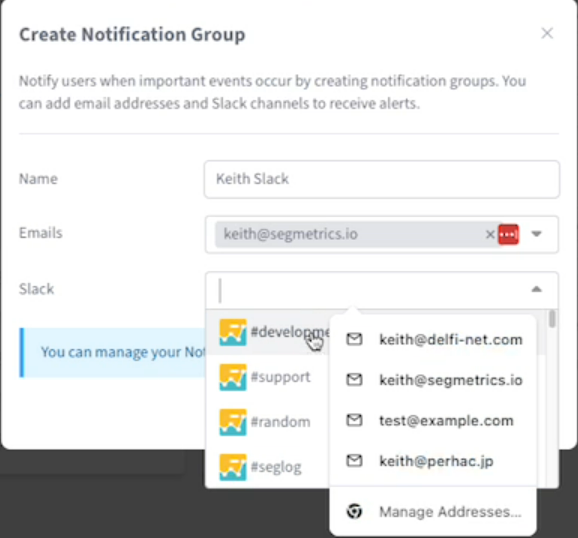
Alerts sent to Slack will include the metric name, current value, threshold information, and a link back to SegMetrics for more details.
Managing Active Alerts
View and manage all your configured alerts from the Metric Alerts dashboard. Active alerts display:
- Alert name
- Current metric percentage or value
- Visual progress indicator (colored bar showing status: red for exceeded thresholds, green for healthy metrics)
- Comparison values showing current vs. threshold
You can:
- Click on any alert card to edit its configuration
- Monitor multiple alerts simultaneously
- Group alerts by Status using the "Group by" dropdown in the top-right corner
- Search for specific alerts using the search bar
Video Review
Below is a video reviewing and summarizing content covered in this article.
FAQs
Q: Can I create multiple alerts for the same metric?
A: Yes, you can create multiple alerts monitoring the same metric with different conditions, thresholds, or time periods. For example, you might create one alert for when Cost per Customer exceeds $100 over 7 days, and another for when it exceeds $150 over 30 days.
Q: How often are metric alerts checked?
A: Metric alerts are checked daily. SegMetrics evaluates your configured conditions once per day and sends notifications when thresholds are met or exceeded.
Q: Can I pause an alert without deleting it?
A: Yes, you can set the Status field to "Inactive" when editing an alert. This will pause the alert without deleting your configuration, allowing you to reactivate it later by changing the status back to "Active."
Q: What happens when an alert is triggered?
A: When an alert condition is met, notifications are sent based on your "Send to" configuration. Recipients will receive an in-app notification, and if Slack is configured, a message will be posted to the designated Slack channel. The alert card on your dashboard will also update to reflect the current status.
Transcription:
Want to catch problems while they're still small?
Metric alerts notify you when key metrics drop below given benchmarks, such as when conversion rates drop, revenue dips, or traffic sources underperform so you're not finding out weeks later in a dashboard review.
Create a new alert by selecting the metric you want to monitor.
For example, set an alert when your average order value drops below $75.
Choose whether you want an in-app notification or to send alerts to Slack channel so your whole team knows immediately.
Set alerts for metrics you check daily, like trial conversions or revenue from your main acquisition channels.
Get notified the moment something changes, not weeks later.
You can focus on revenue and efficiency with strategic alerts.
Alert when customer acquisition costs rises above your preferred amount, maybe $50 per customer.
You can alert when return on ad spend drops below, break even if your row as falls under a hundred percent. You need to know immediately.
Alert when average order values drop below $75, cutting into your margins.
You can alert when customer lifetime value drops below a specified percentage indicating your retention is slipping. Each alert acts as an early warning system. View all of your active alerts in one place.
See each metric being monitored, the threshold that it triggers, and where notifications are sent. You can edit alerts to adjust thresholds as your business grows. Pause alerts when running campaigns that might skew metrics or delete alerts you no longer need. Keep your monitoring system tuned to what matters most. Right now.
Set up complimentary alerts at catch related problems. High customer acquisition costs plus low return on ad spend together signal a serious ad performance issue requiring immediate attention. Stop reacting to problems after they've cost you. Thousands get instant alerts when metrics drift off target.
Investigate immediately and fix issues while they're still small and manageable.