
Agency Dashboard Sharing
Save custom dashboards as templates and share them across all accounts under your agency. Instead of rebuilding dashboards for each client, create once and deploy instantly with a simple link, ensuring consistent reporting and analytics across your entire portfolio.
Watch this video for a step-by-step walkthrough of sharing dashboard templates across your agency accounts.
Step 1: Create or Select Your Dashboard
- Navigate to the Dashboards section in SegMetrics.
- Choose an existing dashboard you want to share, or create a new one by following these steps:
- Click New Dashboard.
- Choose from an existing template or select Start from Scratch.
- Add the widgets you want to track by dragging them onto your dashboard.
- Configure each widget with the appropriate metrics, filters, and date ranges.
- Arrange the widgets in your preferred layout.
- Save your dashboard with a descriptive name.

Step 2: Export Dashboard to Template
- Open the dashboard you want to share as a template.
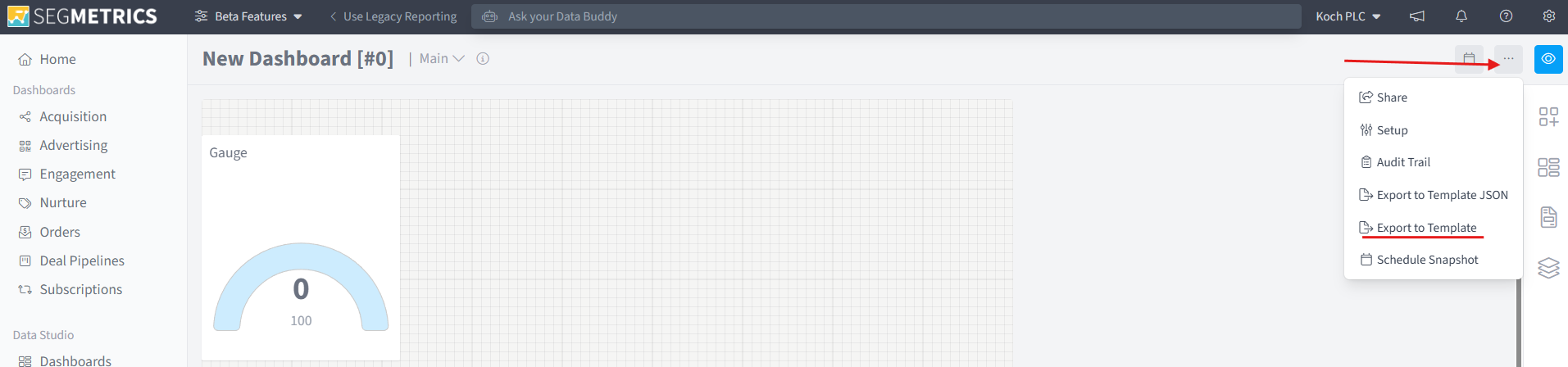
- Click the three dots menu (⋮) in the top right corner of the dashboard.
-
Select Export to Template from the dropdown menu.
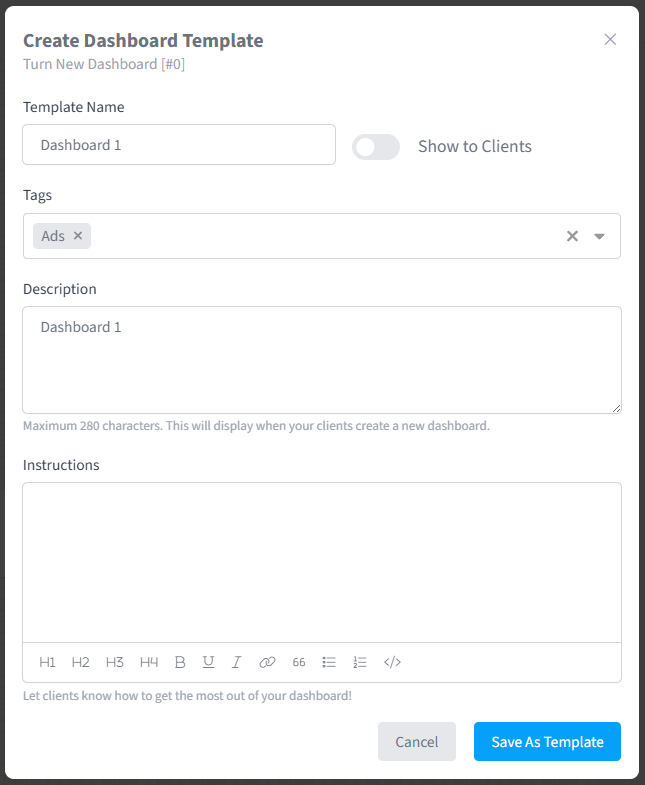
- In the template configuration window, fill in the following details:
- Template Name: Enter a clear, descriptive name (e.g., "E-commerce Performance Dashboard" or "Monthly Client Report").
- Tags: Add relevant tags to help organize and find the template later (e.g., "e-commerce," "monthly," "client-facing").
- Description: Write a brief description of what this dashboard tracks and who should use it.
- Instructions (optional): Provide guidance on how to use the dashboard, what metrics to focus on, or any customization recommendations.
-
Click Save Template to create the dashboard template.
Your dashboard is now saved to your Agency templates library.
Step 3: Access Your Dashboard Templates
- Navigate to your Agency account in SegMetrics.
- Go to the Dashboard Templates section from the left menu.
- You'll see a list of all your saved dashboard templates with their names, descriptions, and tags.

- In the Dashboard Templates list, locate the template you want to share.
- Click the Copy Link button next to the template name (or hover over the template and select the copy link option).
- The template link is now copied to your clipboard.
You can now share this link with any account under your agency.
Step 4: Deploy Template to Client Accounts
- Navigate to the client account where you want to deploy the dashboard template.
- Paste the template link directly into your browser's address bar.
- Press Enter.
-
You'll be prompted with a confirmation message asking if you want to copy this template to the current account.
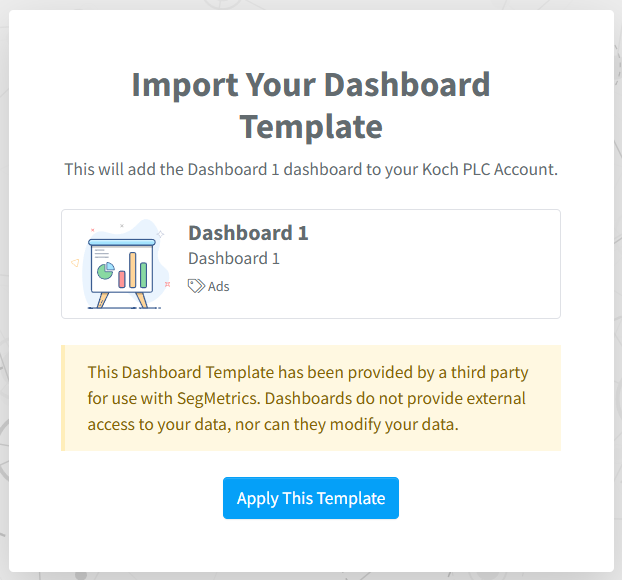
- Review the template details displayed in the prompt.
- Click Confirm or Import Template to deploy the dashboard.
- The dashboard will be created in the client account with all the same widgets, metrics, and layout as your original template.
The template is now active in the client account and will display data specific to that client's business.
Frequently Asked Questions
Q: Can I edit a dashboard template after I've created it?
A: Dashboard templates are snapshots of your dashboard at the time of export. To update a template, you'll need to make changes to the original dashboard and export it as a new template (or overwrite the existing template by using the same name). Any dashboards already deployed to client accounts will not automatically update and will need to be redeployed if you want them to reflect the changes.
Q: Will the template use the client's actual data when deployed?
A: Yes. When you deploy a template to a client account, the dashboard widgets automatically pull data from that specific client's account. The template provides the structure, layout, and widget configurations, but displays each client's unique metrics and performance data.
Q: Can I share templates with team members in my agency?
A: Yes. Dashboard templates are available to all users within your agency account who have appropriate permissions. Any team member can access the templates library, copy template links, and deploy them to client accounts they have access to.
Q: What happens if a template includes widgets or metrics that aren't available in a client account?
A: If a client account doesn't have the necessary integrations, data sources, or custom fields required for certain widgets in your template, those widgets will display an error message or "no data available" status. You can either add the required integrations to the client account or manually remove incompatible widgets after deployment.
Q: How many dashboard templates can I create?
A: There is no limit to the number of dashboard templates you can create for your agency. However, we recommend keeping your template library organized by using clear naming conventions, descriptive tags, and regular cleanup of outdated templates to make it easier for your team to find and use the right templates.