
Facebook / Meta Ads
There are two C's when properly integrating Facebook; connect and configure. Learn how to successfully do both and integrate Facebook Ads with SegMetrics to track campaign performance, attribution, and connect your ad spend to actual revenue across your entire marketing funnel.
SegMetrics gives you the ability to analyze your Facebook campaign performance and connect it to other data sources. With this integration, you can segment data into leads, find automation triggers that convert to customers, and understand where your most valuable leads come from.
SegMetrics takes spend data from Facebook and purchases from your payment processor, then connects them to email addresses in your email marketing platform. You don't need to import orders or tag people in a special way - contacts just need to be in your CRM account.
Integration Benefits:
- Track the complete customer journey from Facebook ad click to purchase
- Connect ad spend to actual revenue, not just immediate conversions
- Analyze campaign performance across multiple touchpoints
- Build comprehensive reports combining Facebook data with CRM and email marketing data
What you'll need:
- Active SegMetrics account
- Facebook Ads Manager access
- Facebook Business account with active campaigns
Watch this video for a walk through on how to connect your Facebook / Meta ads account to SegMetrics or read below for a step by step.
Connecting Facebook / Meta to SegMetrics
Step 1: Access SegMetrics Integrations
- Click the gear icon in the top right corner of SegMetrics
- Select "Integrations" from the menu
- Scroll down or search for the Facebook integration
- Click "Connect" next to Facebook
Step 2: Authorize Facebook Connection
This opens the Activation window where Facebook will ask you to confirm the connection. Follow the authorization prompts to link your Facebook Ads account.
Configuring Facebook / Meta Ads for Tracking
To track your ad spend effectively, you need to add URL parameters to each of your ads. SegMetrics requires the ad_id={{ad.id}} parameter for proper attribution.
Basic Ad ID Parameter
Add this to the URL Parameters section of each ad:
ad_id={{ad.id}}
Complete UTM Tracking (Recommended)
utm_campaign={{campaign.name}}&utm_source=fb&utm_medium=cpc&utm_content={{ad.name}}&utm_term={{adset.name}}&ad_id={{ad.id}}
Setting Up URL Parameters in Facebook Ads Manager
- Log into Facebook Ads Manager
- Navigate to the Ads tab
- Check boxes for all ads you want to track
- Click "Edit" in the top bar and select "Tracking"
- Select all ads you're configuring
- Choose "URL parameter" and paste the UTM parameters
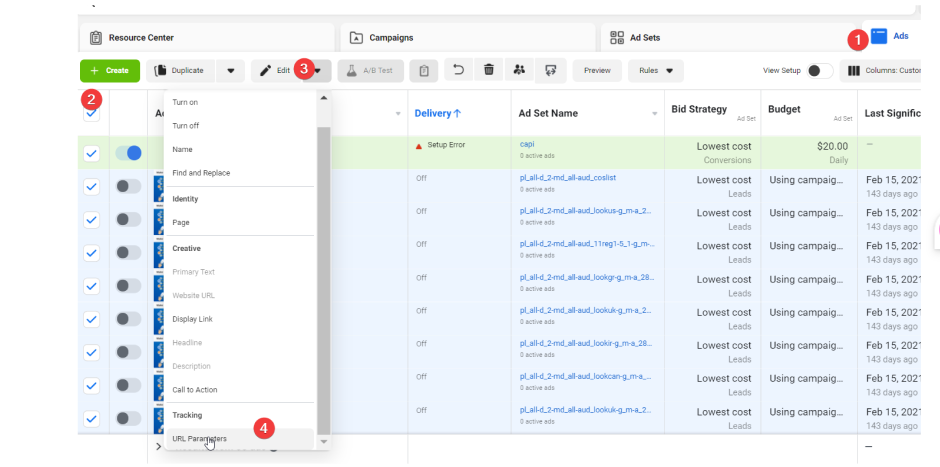
Alternative Method (Updated Interface): Facebook has updated their interface for some accounts. You may need to:
- Click the Edit button for individual ads
- Assign parameters for each UTM option manually
- Add
ad_id={{ad.id}}manually since there's no existing option
Individual URL Parameters Setup
If using the updated Facebook interface, configure each parameter separately:
utm_source=fbutm_medium=cpcutm_campaign={{campaign.name}}utm_content={{ad.name}}utm_term={{adset.name}}ad_id={{ad.id}}
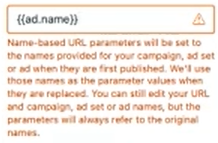
If you receive the below warning message that is okay, you can proceed.
Important Notes About Social Proof
Critical: To ensure your ads don't lose likes and comments, make sure you update URL Parameters in the TRACKING section of the ad, not the main URL.
Facebook continually updates their algorithm regarding social proof retention. We cannot guarantee that likes and comments will be preserved after changing tracking parameters. For high-engagement ads, refer to our guide on Updating Facebook Ads Without Losing Social Proof.
Carousel Ad Configuration
Facebook has a known issue where URL parameters aren't applied to each image in carousel ads - only the main button.
Solution: Add ad_id={{ad.id}} directly to your landing page URL:
Example:
https://example.com/my-page/?ad_id={{ad.id}}
Enable Meta Lead Ads Tracking
If the Facebook integration connected:
- Go to Settings → Integrations → Facebook.
- Click Set Up Ad Tracking.
- Under the Lead Ad Tracking section, enable the Facebook Page(s) you want to track lead forms for.
- Click Save Changes.
SegMetrics will then begin importing Meta Lead Ads submissions automatically. If the customer's Facebook Page doesn't appear in the list, have them reconnect their Facebook integration and check again.
URL Shortener Warning
Important: Most URL shorteners remove UTM and ad tracking parameters, breaking tracking in SegMetrics, Google Analytics, and other systems.
Test your shortener:
- Add
?utm_campaign=testto your shortened URL - If the final destination loses the parameter, avoid that shortener
Recommendation: Use full URLs in your ads or a custom redirection service that preserves tracking parameters.
Historical Data and Syncing
When you first connect Facebook to SegMetrics:
- We import the last month of ad spend, clicks, and impressions for all currently active ads
- Lead attribution starts immediately once ads are configured for tracking
- Data is stored in our database, allowing for historical reporting over time
Pro Tip: Facebook data syncs in UTC, but SegMetrics reports in your account's timezone setting.
Building Reports with Facebook Data
Step 1: Access Ad Reporting
- Click "Ad Reporting" in SegMetrics
- Save your report with a memorable name
Step 2: Configure Filters
Select your desired filters based on:
- Date ranges
- Campaign tags
- Specific touchpoints
- Customer segments
Step 3: Save and Share
Save your report to:
- Return to it later
- Include data in custom dashboards
- Share with team members
How long does it take my Facebook Campaigns to reach my target ROI?
How can I find the ROI of my Facebook leads over time?
Frequently Asked Questions
Q: Why am I seeing clicks but no leads in SegMetrics?
A: This usually indicates a tracking setup issue. Verify: (1) Tracking pixel is installed on all pages including landing pages, (2) ad_id={{ad.id}} is correctly added to URL parameters, (3) Leads are entering email addresses on pages with tracking pixels, (4) Leads are being added to your email marketing system.
Q: What timezone is Facebook data synced in?
A: Facebook data syncs in UTC, but SegMetrics reports based on your account timezone setting. You can adjust this in Account Settings.
Q: Do I need tracking links to get Facebook Ads data?
A: No, you don't need to create tracking links. SegMetrics will gather UTM data automatically. Tracking links provide additional detail for specific link performance analysis.
Q: Can I connect multiple Facebook ad accounts?
A: Yes, you can connect multiple Facebook ad accounts as separate integrations. Each account will be tracked independently in SegMetrics.
Q: What should I do about URL shorteners?
A: Most URL shorteners remove tracking parameters. Test yours by adding ?utm_campaign=test to see if it's preserved. If not, use full URLs or a custom redirection service that maintains parameters.
Q: Why is my ad spend blank?
A. There may be times when you look at reports from Facebook ads and the names you assigned to them are missing. You may need to reconnect SegMetrics with Facebook.
Unfortunately, the authorization is never suppose to expire however we've noticed it only lasts for around 60 days give or take. You should have received an email asking you to re-authorize the account. If you don't see the email in your main inbox, check your spam or other folders that may have filters set up. You can re-authorize the account here:
https://app.segmetrics.io/a/integration/create/facebook
Even if the authorization expires, SegMetrics still tracks all the clicks and leads coming in from the ads, so you don't lose any data. As soon as you re-authorize, all the data should come right back in.
Transcription:
Ready to track exactly which Facebook ads are bringing in your customers and revenue.
Let me walk you through connecting Facebook ads to Segments in just a few minutes.
First, head over to your integrations page and find Facebook ads.
Click connect and authorize Segments to access your ad account.
Once connected, Segments will automatically import your recent ad spend, plus all of your campaign, ad set, and ad names.
This gives you a head start on your reporting.
Once connected, head over to your site setup page.
Then click View your setup instructions.
This is where you’ll find your Facebook-specific URL parameters.
Go ahead and copy these parameters and head over to your Facebook Ads Manager.
Once in your Ads Manager, click on the Ads tab.
Then click Edit on one of the ads.
Scroll all the way down to the bottom and paste those URL parameters into the URL parameters box.
Then click Publish.
Or, if you’d like to edit multiple ads at once, head back to the Ads tab.
Select the ads you’d like to edit.
Then click the dropdown next to the Edit button and select URL parameters.
Paste the URL parameters into the Edit all selected ads field.
Then click Publish.
This method applies those changes to all ads automatically.
One key thing to remember is that attribution tracking only starts once you install these parameters.
We can’t track clicks and conversions from before they’re added, so get them in place as soon as possible to start collecting that valuable data.
You’ll also want to make sure that your Segments tracking pixel is installed on all pages of the funnel that you’re directing your ads to.
Once everything is connected, you’ll see exactly which Facebook ads are driving not just clicks, but actual customers and revenue.
Stop wondering if your Facebook ads are working — see exactly which ones are paying for themselves and which ones aren’t.