
MCP Server — Connect SegMetrics to Claude & ChatGPT
Get Started with the SegMetrics MCP Server
The SegMetrics MCP (Model Context Protocol) Server gives AI tools like Claude and ChatGPT direct access to your SegMetrics data — but it goes far beyond pulling reports. The MCP Server is built so the AI can explore your account on its own: it can discover your products, traffic sources, tags, segments, and funnels, then use that context to ask deeper questions, break apart your funnel stages, and surface insights you might not think to look for.
That means instead of telling the AI exactly what report to run, you can describe a problem and let it investigate:
- "Why is my opt-in funnel not converting?"
- "Of all the people who came through my retargeting ads, where did they originally come from?"
- "For everyone who registered for my webinar, how should I change the content to boost conversions?"
- "After someone buys my intro course, what's the best product to pitch next?"
The AI will figure out which data to pull, how to segment it, and what follow-up questions to ask — all from a single prompt.
This article walks you through connecting the MCP Server to your AI tool and running your first query.
The SegMetrics MCP server is Read-Only. That means while it can see the information in your SegMetrics account, it can not make any changes to your account, or the underlying data.
Requirements
- An active SegMetrics account
- A paid plan for your AI tool (e.g., Claude Pro, ChatGPT Plus) that supports MCP connections
Find Your MCP Server URL
Your MCP Server URL is unique to your SegMetrics account. To find it:
- Log in to your SegMetrics account.
- Navigate to Account Settings.
- Locate your Account ID.
Your MCP Server URL follows this format:
https://app.segmetrics.io/mcp/ACCOUNT_ID
Replace ACCOUNT_ID with the Account ID from your settings. Keep this URL handy — you'll need it in the next step.
NOTE: If you are an agency, you will need to connect all sub-accounts to the MCP Server.
Connect to Claude
- Open Claude and navigate to Settings.
- Select Connectors.
- Click Add Connector and choose Custom MCP Server (or search for SegMetrics if available).
- Paste your MCP Server URL:
https://app.segmetrics.io/mcp/ACCOUNT_ID
- Click Connect. You'll be prompted to authenticate with your SegMetrics account via OAuth. Follow the on-screen instructions to authorize access.
- Once connected, SegMetrics tools will be available in your conversations.
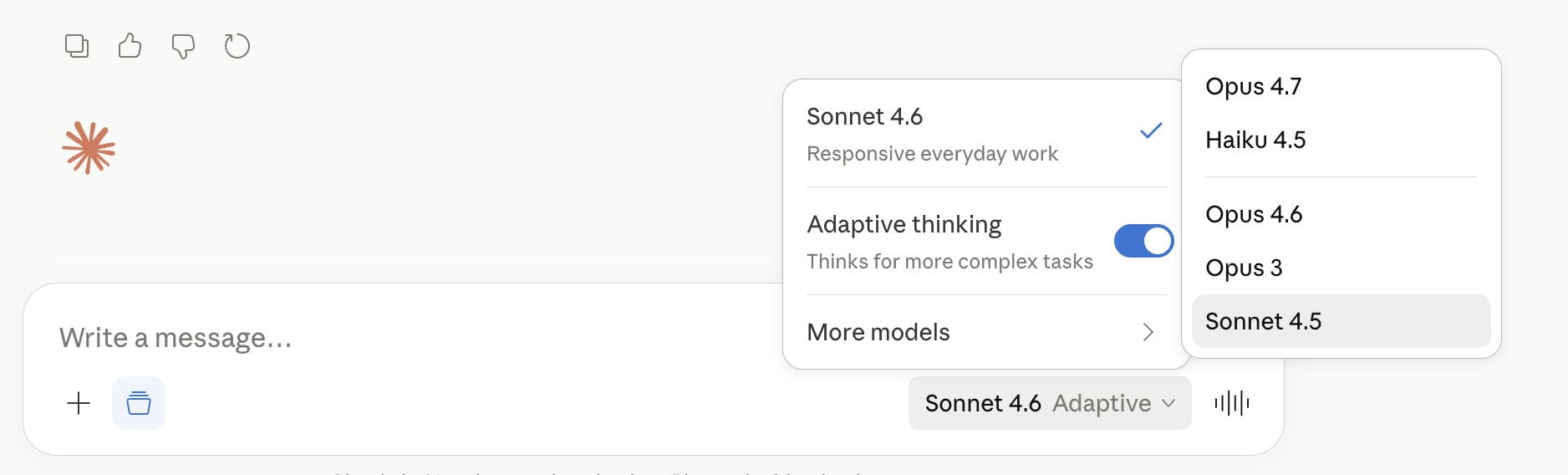
NOTE: Be sure to connect to the smartest version of Claude that is available and select adaptive thinking.
Connect to ChatGPT
- Open ChatGPT and go to Settings.
- Under Developer Mode or Connectors, enable MCP support.
- Create a new connector and name it SegMetrics.
- Paste your MCP Server URL:
https://app.segmetrics.io/mcp/ACCOUNT_ID
- Complete the OAuth authentication when prompted to authorize your SegMetrics account.
- SegMetrics tools will now be available in your ChatGPT conversations.
NOTE: Be sure to connect to the smartest version of ChatGPT that is available.
Connect to Other AI Tools
The SegMetrics MCP Server works with any AI tool that supports the Model Context Protocol. If you're using a tool other than Claude or ChatGPT (such as Cursor, Windsurf, or VS Code Copilot), you can connect it by providing your MCP Server URL:
https://app.segmetrics.io/mcp/ACCOUNT_ID
Consult your AI tool's documentation for instructions on adding a remote MCP server, or ask the AI tool directly: "I have a remote MCP URL from SegMetrics — how do I connect it here?"
Your First Query
Once connected, start a new conversation and try a simple question to confirm everything is working:
"Give me a summary of my SegMetrics account."
The AI will call the SegMetrics MCP Server, pull your account information — including connected integrations, attribution model, and a data summary — and return the results in plain language.
From there, try something more specific:
"What are my top 5 traffic sources by revenue over the last 90 days?"
If you get results, you're all set. If the AI can't connect, double-check that your MCP Server URL is correct and that you completed the OAuth authorization step.
More Than Reports — AI That Investigates
The real power of the MCP Server isn't pulling a single report. It's that the AI can chain multiple tools together to investigate a question the way an analyst would.
For example, if you ask "Why is my webinar funnel underperforming?", the AI doesn't just return one table. Behind the scenes, it might:
- Pull your account info to understand your attribution model and integrations.
- Look up your segments and tags to find webinar-related audiences.
- Check your traffic sources to see where webinar registrants are coming from.
- Run a funnel report to identify which stage has the biggest drop-off.
- Drill into the contacts at that stage to find patterns — are they from a specific ad campaign? A particular list? A traffic source with low intent?
- Compare that against a previous time period to see if the problem is new.
All of that happens from a single prompt. You describe the problem, and the AI maps out the investigation.
This also means the AI gets smarter about your specific business over the course of a conversation. Once it has discovered your products, segments, and traffic sources, it can reference them in follow-up questions without you having to re-explain your setup. Ask a broad question first, then drill deeper — the AI keeps the context.
Example Prompts
Here are prompts organized by what you're trying to accomplish. You don't need to know which tool or report type to use — just describe what you want and the AI will figure out the right approach. The best prompts are often open-ended questions about your business, not requests for specific reports.
Funnel diagnostics and investigation
- "Why is my opt-in funnel not converting? Show me where people are dropping off."
- "Compare my webinar funnel performance this month vs. last month."
- "Walk me through each stage of my launch funnel and tell me where I'm losing the most people."
- "What's different about the people who make it through my entire funnel vs. the ones who drop off after the webinar?"
Attribution and traffic
- "Which traffic sources are driving the most revenue?"
- "Of all the people who came through my retargeting ads, where did they originally come from?"
- "Break down my Facebook ad spend vs. revenue by campaign."
Product strategy
- "What's my best-selling product this quarter?"
- "After someone buys my intro course, what product do they usually buy next?"
- "Show me refund rates by product for the last 6 months."
- "Which product has the highest customer lifetime value after 12 months?"
Audience segmentation
- "Who are my top 10 customers by lifetime value?"
- "How many contacts were tagged 'Webinar Attendee' in the last 30 days?"
- "Show me everyone on my 'Masterclass Buyers' list who hasn't purchased in 90 days."
- "What do my best customers have in common — which traffic sources, tags, and products show up most?"
Reporting
- "Give me a monthly revenue breakdown for this year."
- "What's my cost per acquisition by ad campaign?"
- "Show me subscription churn by month for the last 12 months."
Available Tools
The MCP Server exposes 11 tools that the AI can call on your behalf. You don't need to invoke these directly — the AI selects the right tool based on your question. This list is here so you know what's possible.
The tools fall into two categories. Discovery tools let the AI learn the shape of your business — your products, traffic sources, segments, tags, and available metrics — so it can ask informed follow-up questions. Query tools let the AI pull actual data, run reports, and drill into individual contacts. When you ask an open-ended question, the AI typically uses several discovery tools first, then runs targeted queries based on what it finds.
| get-account-info | Returns your account context: account name, timezone, currency, attribution model, feature flags, subscription plan, connected integrations, and a data summary. The AI typically calls this first to understand your account before making queries. |
| run-query | Executes a report query against your SegMetrics data. This is the primary tool for pulling metrics and analyzing performance. It supports 16 report types (including acquisition, ads, revenue, funnel, leads, subscriptions, and more), with filtering, grouping by dimensions, date ranges, time comparisons, and multiple attribution models. |
| get-contacts | Retrieves individual contact or order records matching filter criteria. Use this to drill down from aggregate numbers to specific people — for example, "show me the contacts who churned" or "list my top customers by revenue." Supports contact, order, and individual purchase views. |
| get-metrics | Searches the 370+ available metrics in SegMetrics. The AI uses this to discover which metrics are valid for a given report type before running a query. |
| get-dimensions | Searches available dimensions (group-by fields) for reports. Includes account-specific custom dimensions pulled from your integration custom fields, such as CRM custom properties. |
| get-filters | Searches available filters and pruners. Filters narrow which contacts are included in a report (applied before aggregation). Pruners narrow which rows appear in results (applied after aggregation). |
| get-products | Returns your products with revenue and volume stats. Supports keyword search and date range filtering so the AI can understand what your business sells before analyzing performance. |
| get-tags | Returns tags with contact counts. Supports keyword search and date range filtering. When a date range is provided, contact counts reflect only contacts tagged within that period. |
| get-lists | Returns lists with contact counts. Supports keyword search and date range filtering. When a date range is provided, contact counts reflect only contacts added within that period. |
| get-segments | Returns saved audience segments with their filter definitions. The AI uses this to discover existing segments before filtering reports or analyzing specific audiences.Returns active traffic sources: channels, UTM sources, mediums, and campaigns with recent data. The AI uses this to discover what traffic sources exist before querying their performance. |
| get-traffic-sources | Returns active traffic sources: channels, UTM sources, mediums, and campaigns with recent data. The AI uses this to discover what traffic sources exist before querying their performance. |