
Paypal
SegMetrics gives you the ability to analyze the true revenue from your marketing campaigns by connecting to the data from both your marketing platforms and PayPal. With that information, you can easily see the lifetime ROAS, find the automation triggers that convert to customers, understand where your most valuable leads are coming from, etc.
SegMetrics connects spend from your ad platforms and purchases from PayPal to email addresses in your email marketing platform. You don't need to import orders or tag people - they just need to be in your PayPal and email system.
PayPal Integration Options
There are two PayPal integrations available in SegMetrics: PayPal and PayPal (Legacy). We recommend using the standard PayPal integration, as PayPal Legacy does not support subscriptions, invoices, or product names.
Step 1: Connect in SegMetrics
- Click the gear icon in the top right corner > Integrations
- Select the Payments list and click Connect next to PayPal
Step 2: Set Up PayPal REST API
Requirements:
- A PayPal business account
- Transactions enabled for your PayPal account
Create API App:
- Go to PayPal Developers page and log in
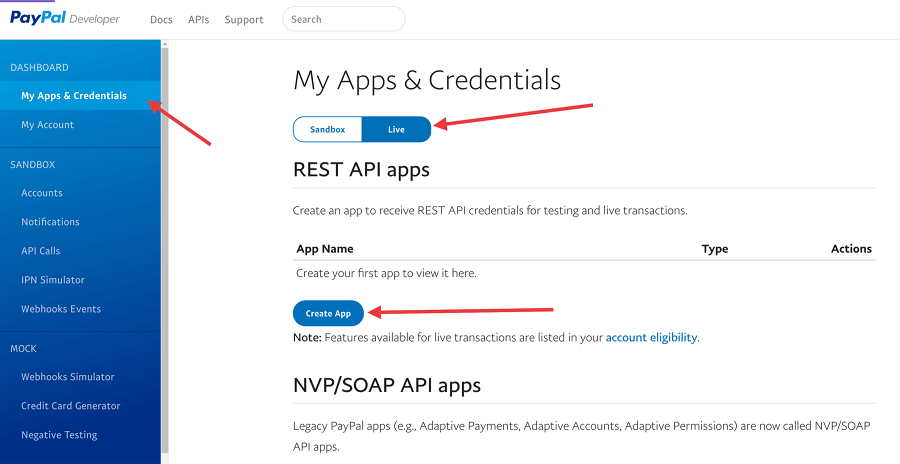
- Click My Apps and Credentials > Live > Create App
- Enter "SegMetrics" as the app name and finish creating the app
- Important: Tick the Transaction Search option at the bottom to allow SegMetrics to import your transaction history
- Ensure Live is selected (not Sandbox) in the top right
- Copy the Client ID and Client Secret (click "Show" to reveal the secret)
-
Paste these credentials into the SegMetrics PayPal integration form and save
Historical Data Sync
When you connect PayPal to SegMetrics, 3 years of historical data is synced automatically.
Pro Tip: Once connected, SegMetrics stores data in our database, allowing us to accumulate more historical information over time for comprehensive reporting.
Understanding Available Revenue Data in Reports
Once PayPal is connected, you can analyze your revenue using different SegMetrics reports. Important: Each report shows revenue based on specific criteria and date ranges.
Report Types and Revenue Scope
Acquisition Report
- Revenue: Only shows revenue from NEW customers - excludes repeat purchases from existing customers
- Use this to measure new customer acquisition and first-time purchase value
Nurture Report
- Revenue: Revenue from customers who received tags/list additions, regardless of when they first purchased
- Use this for email marketing and segmentation performance
Engagement Report
- Revenue: Revenue from customers who had website activity, even if the purchase happened before/after the visit
- Use this to measure how website engagement correlates with sales
Orders Report
- Revenue: Shows ALL revenue regardless of customer type (new or existing)
- Use this for total sales performance and overall revenue tracking
Subscriptions Report
- Revenue: Revenue from new subscriptions only
- Use this to track subscription business growth
Building Reports
- Click Contacts > New Report and save with a name
- Select filters based on dates, tags, and touchpoints
- Save for later use or add to a custom dashboard
Frequently Asked Questions
Q: Does SegMetrics show customers who use different email addresses in PayPal?
A: Not automatically. If the email the person used to purchase via PayPal is different than the one they used to opt into the ESP you have connected, their purcahse will NOT show up in SegMetrics. The quickest fix to this moving forward would be to ensure the email of any purcahse is sent to the ESP. To fix any previous purchases that haven't come through, reach out to support for the CSV file of "non-connected invoices". If you enter those emails into your ESP as contacts SegMetrics will then automatically bring their purchases in.
This is a complex issue that plagues many PayPal accounts. Feel free to reach out to SegMetrics support at help@segmetrics.io
Q: What time zone is PayPal data synced in?
A: PayPal data is synced in UTC. SegMetrics reports use the timezone set in your Account Settings.
Q: Do I need the SegMetrics tracking pixel for PayPal data?
A: No, you don't need the tracking pixel to get PayPal transaction data. SegMetrics will automatically sync your PayPal purchases.
Q: How do I know if my PayPal revenue is being doubled up in SegMetrics?
A: You can check this in two ways:
- Filter by Integration: In your Orders report, use filters to select "Integration" and choose only PayPal to see exactly what revenue PayPal is sending in
- Check Individual Customers: Select an individual customer and look at their purchases at the contact journey level. If you see two purchases from two different integrations at the same time for the same amount, your revenue is being doubled. You can remove either integration or contact support for assistance or guidance
Q: What's the difference between PayPal and PayPal Legacy?
A: The standard PayPal integration uses the REST API and supports subscriptions, invoices, and product names. PayPal Legacy uses the older NVP/SOAP API and has limited functionality. Always choose the standard PayPal integration for new setups.