
Omnisend
SegMetrics integrates with Omnisend to help you analyze your email marketing campaign performance and connect it to other data sources. Segment your data into leads, find automation triggers that convert to customers, and understand where your most valuable leads are coming from.
Note: This integration does not provide tag dates. SegMetrics will record the date a tag was first seen rather than the date it was originally applied.
Integration Overview
SegMetrics imports your contacts, custom fields, tags, orders and more directly from Omnisend. The integration stays up-to-date with the most recent information in your Omnisend account to ensure you always have access to the data you need.
Key benefits include:
- Automatic contact and campaign data synchronization
- Email engagement tracking and attribution
- Integration with external payment processors via email matching
- Advanced segmentation based on email behavior
- Complete customer journey tracking from email touchpoint to purchase
Important: Omnisend contact imports can sometimes be delayed beyond the typical import time due to the Omnisend API configuration. Please contact support if leads are not populating after a 24-hour period.
How to Connect Omnisend to SegMetrics
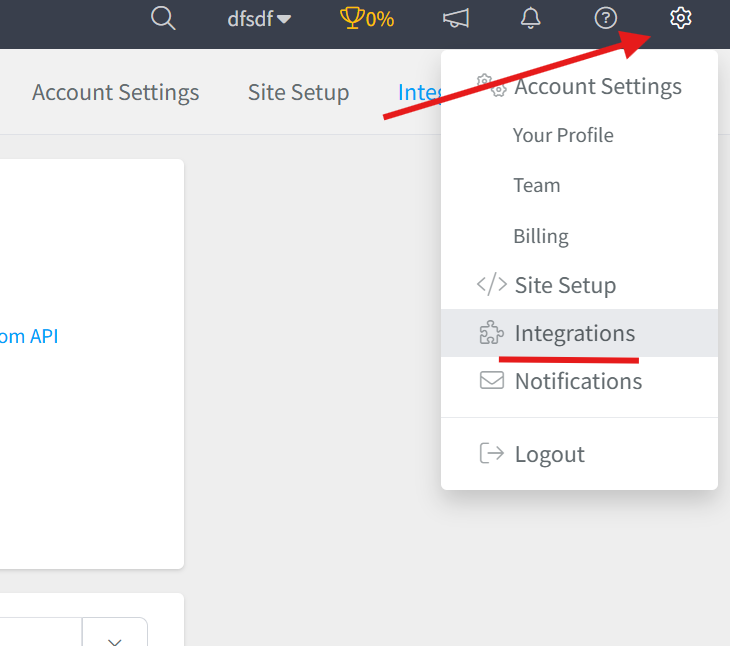
Step 1: Access Integrations
- Click the gear icon in the top right corner of SegMetrics
- Select "Integrations" from the menu
Step 2: Connect Omnisend
- On the Integrations page, locate the CRM section
- Find Omnisend and click "Connect"
- This will open the Activation window where you'll be prompted to enter your API key

Step 3: Get Your Omnisend API Key
- Visit your Omnisend API Key page at https://app.omnisend.com/#/my-account/integrations/api-keys
- Generate or copy your existing API key
- Paste the key in the SegMetrics activation window
- Complete the connection process

The integration will begin importing your Omnisend data automatically once connected.
Using SegMetrics Reports with Omnisend Data
Once connected, use these SegMetrics reports to analyze your Omnisend email marketing data:
Acquisition Report → Track new lead acquisition metrics and performance of lead magnets and opt-in campaigns
Advertisement Report → This is for analyzing the effectiveness of your paid ads. This will show cost per lead, cost to acquire customer, and ROAS.
Nurture Report → Analyze email engagement through tags, segments, and automation sequences to understand nurture effectiveness
Engagement Report → Monitor email click-through rates, website visits from email campaigns, and subscriber interaction patterns
Orders Report → Review revenue generated from email campaigns and identify highest-converting email touchpoints
Subscriptions Report → Track subscription-based revenue attributed to email marketing efforts and retention campaigns
Improving Email Tracking Fidelity
To enhance click tracking from Omnisend emails, add the contact ID to your email links: http://example.com/?email=[[contact.email]]
This helps SegMetrics identify visitors even when they're on different devices.
Historical Data Sync
When you first connect Omnisend, all historical data from your account syncs automatically including contact information, email campaigns, and engagement history. SegMetrics stores this data in its own database, enabling more comprehensive historical reporting as additional sync cycles accumulate data over time.
Pro Tip: Historical email data allows you to analyze past campaign performance, identify successful email sequences, and understand long-term subscriber engagement patterns.
Frequently Asked Questions
Q: What timezone is Omnisend data synced in?
A: Omnisend data syncs in UTC. SegMetrics displays reports based on the timezone set in your Account Settings.
Q: Do I need SegMetrics tracking links for Omnisend data?
A: No, you don't need tracking links to import Omnisend contact and campaign data. However, tracking links provide additional detail about specific email campaign performance and attribution.
Q: How do I connect payment information to Omnisend contacts?
A: SegMetrics automatically connects payment data by matching email addresses between your payment processor and Omnisend contacts. We recommend using whichever payment processor can serve as your single source of truth.
Q: How can I create reports on client invoices and cart sales from Omnisend?
A: For invoice-based client reporting, consider using funnel reports where you can map out each step of your client process (sales call, signup, invoice, payment). This provides clearer attribution than standard contact reports.
Q: Why are my Omnisend contacts not appearing in SegMetrics?
A: Omnisend contact imports can sometimes be delayed due to API configuration. If leads haven't populated after 24 hours, please contact SegMetrics support for assistance.