
Konnektive
SegMetrics gives you the ability to analyze your Konnektive campaign performance and connect it to other data sources. With this integration, you can easily segment leads, identify automation triggers that convert to customers, understand where your most valuable leads come from, and track the complete customer journey from initial touchpoint to purchase.
Integration Overview
SegMetrics imports your contacts, custom fields, tags, orders and more directly from Konnektive. The integration keeps your data up-to-date with the most recent information in your Konnektive account, ensuring you always have access to the information you need for accurate reporting.
Key Benefits:
- Automatic sync of contacts, tags, and custom fields
- Historical order data import
- Real-time data updates
- Cross-platform attribution using email addresses
- Enhanced customer journey tracking
You don't need to import orders or tag people in any special way - they just need to exist in your Konnektive account for SegMetrics to sync them automatically.
How to Set Up API User in Konnektive
Before connecting to SegMetrics, you'll need to create an API user in your Konnektive account:
Step 1: Create New API User
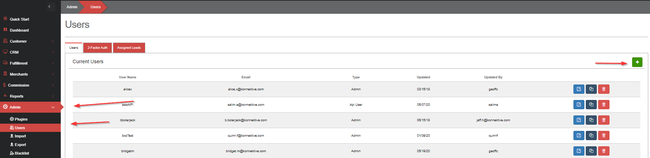
- In Konnektive, go to Admin | Users
- Click the green Add User button
Step 2: Configure User Details
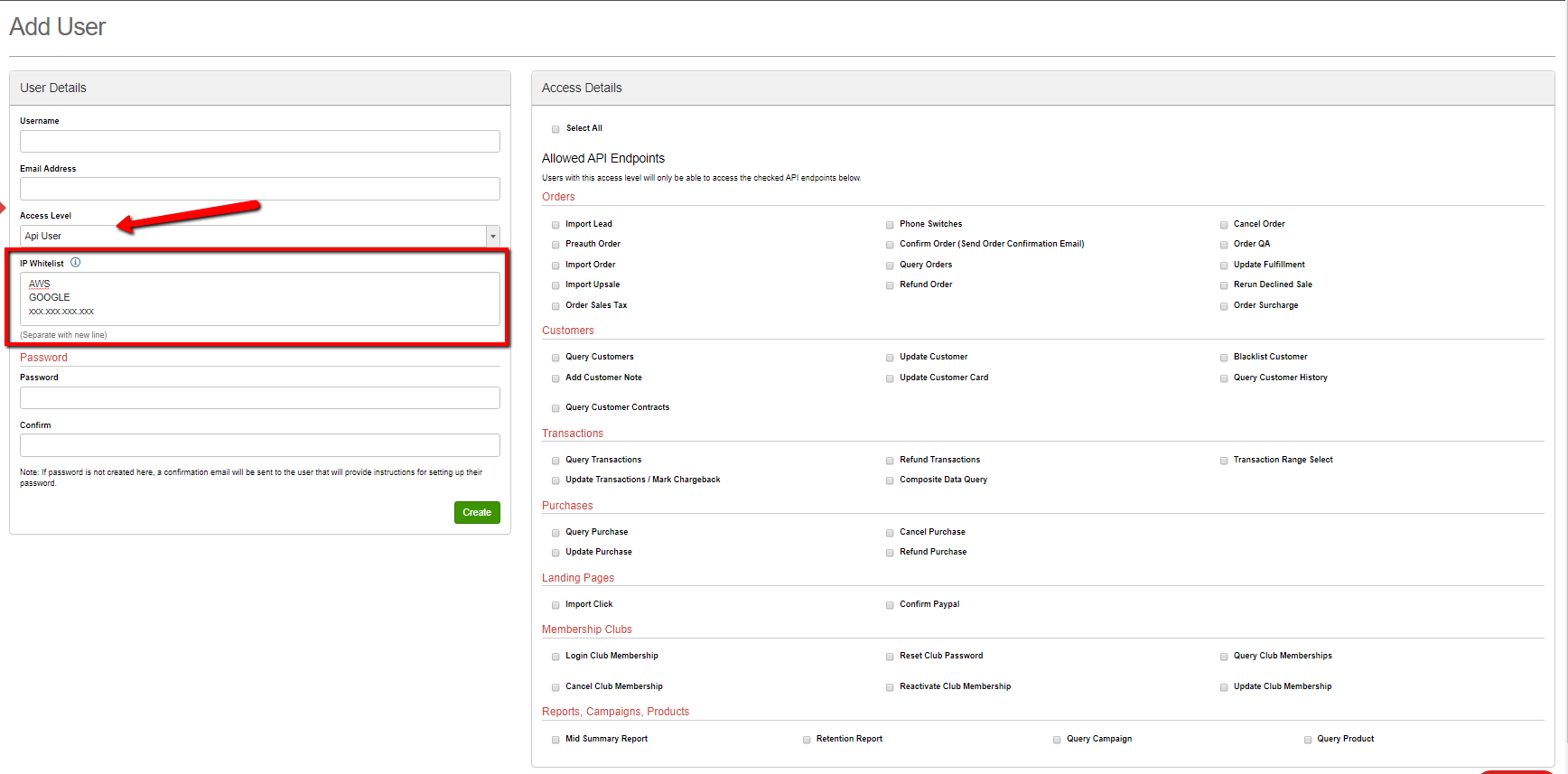
Complete the user creation form with these settings:
User Details:
- Username: Choose a desired username for the API user
- Email: Enter an email address for the user
- Access Level: Select "API User"
- Password: Create a secure password (Note: password must not contain an "&" symbol)
- Confirm: Re-enter the password to confirm
Step 3: Set IP Whitelist
In the "IP Whitelist" box, enter the following IP ranges:
- AWS
- DIGITAL_OCEAN
This allows SegMetrics to securely access your Konnektive data.
Step 4: Save the API User
Click Save to create the API user. Make note of the username and password as you'll need these for the SegMetrics connection.
How to Connect Konnektive to SegMetrics
Once your API user is set up in Konnektive, you can connect the platform to SegMetrics:
Step 1: Access Integrations in SegMetrics
- Click on the gear icon in the top right corner of your SegMetrics dashboard
- Select "Integrations" from the dropdown menu
Step 2: Select Konnektive Integration
- On the Integrations page, locate the CRM section
- Click "Connect" next to Konnektive
Step 3: Enter API Credentials
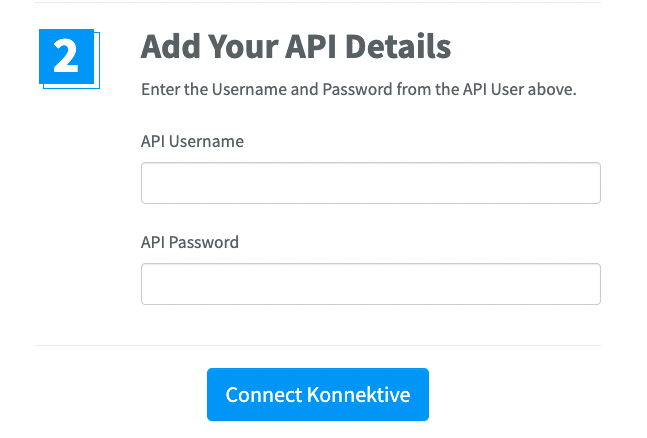
- The Activation window will open, prompting you to enter your API credentials
- Enter the API Username you created in Konnektive
- Enter the API Password you set for the user
- Click "Connect Konnektive" to complete the setup
Connecting Payment Information to Konnektive Contacts
When you connect your payment integration to SegMetrics, we'll automatically connect contacts in your Konnektive account by matching email addresses between the payment processor and Konnektive contacts.
Recommendation: Use whichever payment processor can serve as your single source of truth for the most accurate revenue attribution.
Historical Data Sync
When you first connect Konnektive to SegMetrics, all historical data from your Konnektive account syncs automatically. This includes:
- All existing contacts and their information
- Historical campaign and engagement data
- Past order data (if available in Konnektive)
- Custom fields and tags
> Pro Tip: Once Konnektive is connected and actively syncing, SegMetrics stores the collected data in our own database. This allows us to accumulate more data over time through continuous syncs, giving you access to increasingly comprehensive historical Konnektive data for your reports.
Setting Up Contact ID Tracking for Email Links
To get accurate click tracking from your Konnektive emails, set up the contact ID parameter:
Adding Contact ID to Email Links
Add the Contact Id to your email links using this format:
seg_cid=[Contacts.Id]
Example finished link: http://example.com/?seg_cid=[Contacts.Id]
This parameter allows SegMetrics to identify visitors across devices and sessions, providing more accurate attribution data even when contacts switch devices.
Using Konnektive Data in SegMetrics Reports
Once your Konnektive data is synced, you can create targeted reports to analyze different aspects of your marketing performance. SegMetrics organizes reports by specific use cases to help you find the right insights quickly.
Report Types for Konnektive Data
Acquisition Report - Use this report type for analyzing new lead metrics from your Konnektive data, including lead sources and initial contact acquisition.
Advertisement Report - This is for analyzing the effectiveness of your paid ads. This will show cost per lead, cost to acquire customer, and ROAS.
Nurture Report - Perfect for analyzing tags and list performance metrics. Track how different Konnektive segments and tags contribute to your marketing goals.
Engagement Report - Focus on funnel page interactions and email engagement metrics. Analyze how your Konnektive campaigns drive website activity and conversions.
Orders Report - Track revenue metrics and purchasing behavior from contacts acquired through Konnektive campaigns and sequences.
Subscriptions Report - Analyze subscription product performance for recurring revenue tracking when using Konnektive with subscription-based products.
Each report type provides specific filters and metrics tailored to its purpose, making it easier to extract actionable insights from your Konnektive integration data.
Frequently Asked Questions
Q: What timezone is Konnektive data synced in?
A: Konnektive data syncs in UTC. SegMetrics reports on your data based on the timezone you set in your Account Settings, automatically converting the data for accurate local time reporting.
Q: Do I need tracking links to get data from my Konnektive account?
A: No, you don't need to create tracking links for SegMetrics to gather UTM data from your Konnektive campaigns. However, tracking links provide additional detail about exactly which links visitors clicked for ads, email broadcasts, or campaigns, giving you more granular insights.
Q: Can I track client invoices and cart sales from Konnektive?
A: Yes, for detailed invoice tracking with multiple client touchpoints (sales calls, signups, invoices, payments), consider using SegMetrics funnel reports to map out each step of your client journey. This provides more comprehensive tracking than standard order reports.
Q: How long does the initial sync take?
A: The initial sync time depends on the amount of historical data in your Konnektive account. Most accounts sync within a few hours, though larger accounts with extensive historical data may take longer. You'll receive a notification once the sync is complete.
Q: What happens if I forget my API credentials?
A: You can create a new API user in Konnektive by following the same steps outlined above. Remember to use the new credentials when reconnecting to SegMetrics, and you can delete the old API user from your Konnektive account for security purposes.