
Constant Contact
SegMetrics gives you the ability to analyze your Constant Contact campaign performance and connect it to other data sources. With that information, you can easily segment that data into your leads, find the automation triggers that convert to customers, understand where your most valuable leads are coming from, and more!
Note: This integration does not provide tag dates. SegMetrics will record the date a tag was first seen rather than the date it was originally applied.
Integration Overview
SegMetrics imports your contacts, custom fields, tags, orders and more directly from Constant Contact. SegMetrics is kept up to date with the most recent information in your Constant Contact account, to make sure you always have access to the information you need.
If you have a payment processor that doesn't connect with Constant Contact natively, we can connect that information together using the email addresses in Constant Contact. You don't need to import the orders or tag people in a special way, they just need to be in your Constant Contact account.
Connect Constant Contact to SegMetrics
- Head over to the Integrations page (https://app.segmetrics.io/a/integration) in your SegMetrics account
- Click on the Constant Contact integration

- Click Connect Constant Contact
- Once redirected to the Constant Contact login page, enter your Constant Contact login credentials and click Log in
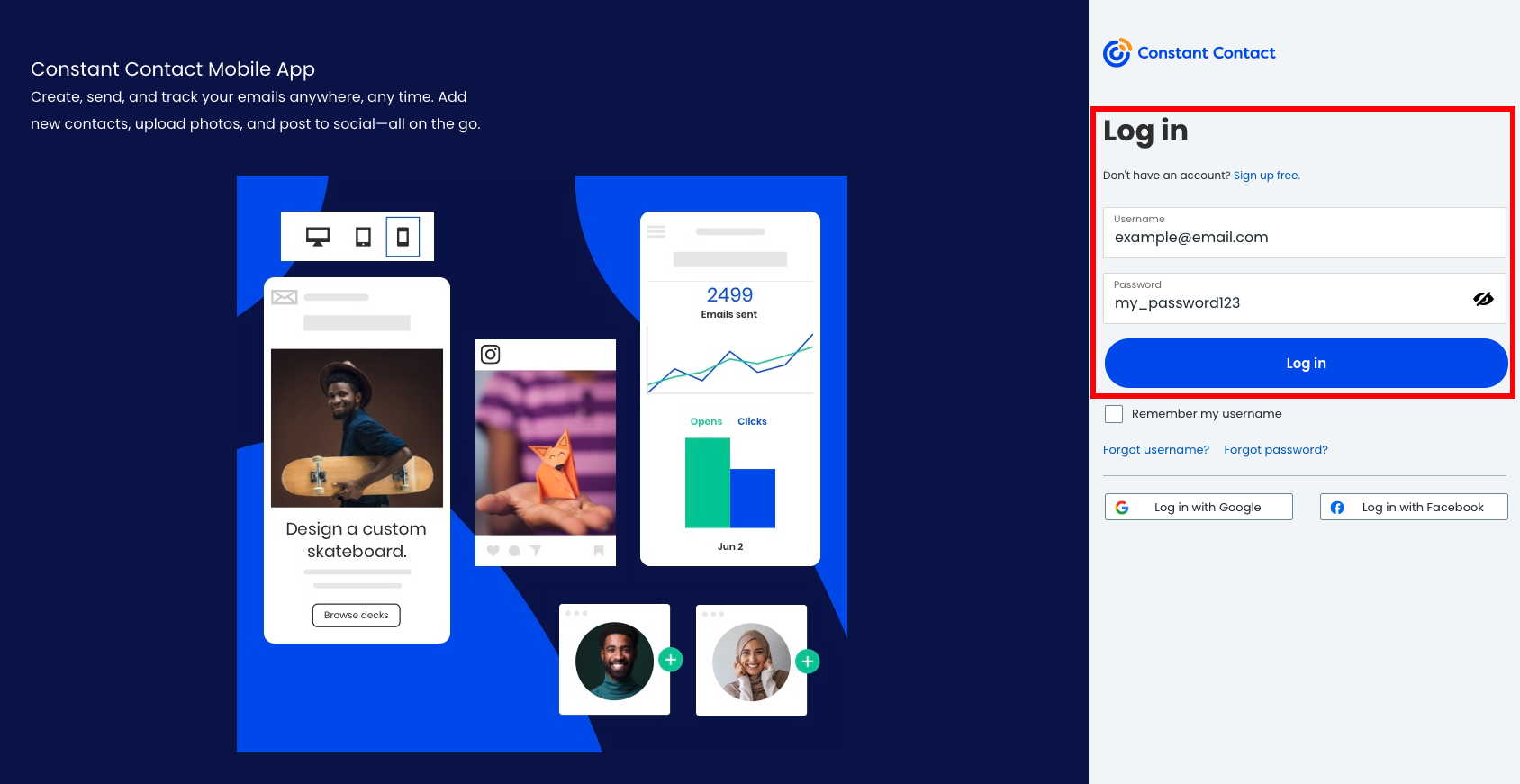
- Now your SegMetrics account will start importing your Constant Contact data.
Historical Data Sync
When you connect a new Constant Contact data source, all historical data from your Constant Contact account is synced.
Once your Constant Contact Data Source is connected and actively syncing data, we store the data that's collected in our own database. This allows us to accumulate more data over time as more data syncs are made so that you can report on the most up to date Constant Contact data in your SegMetrics reports.
How to Build Reports with Constant Contact Data
Once your data is imported from Constant Contact, you can create reports with the data to see how each touchpoint influences your sales.
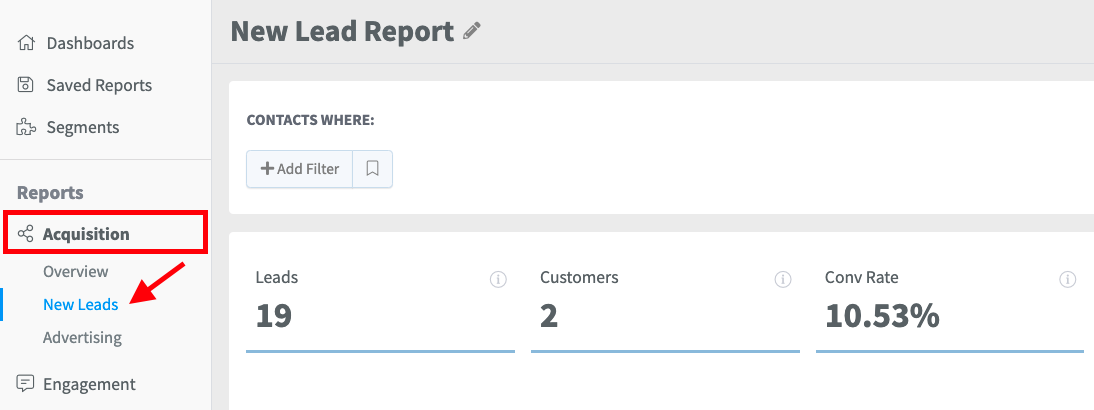
- From your SegMetrics account, click Acquisition > New Leads
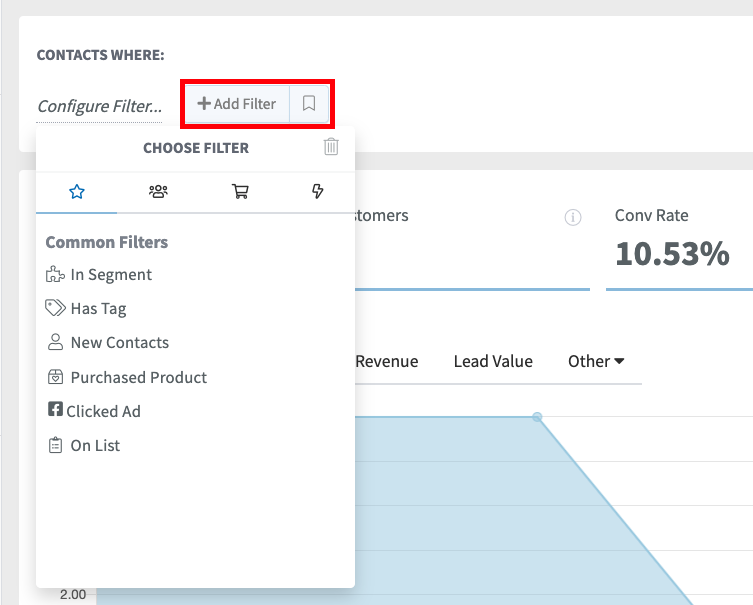
- Select your desired filters based on dates, tags and other touchpoints
Frequently Asked Questions
Q: How long does it take for Constant Contact data to sync with SegMetrics?
A: Initial sync begins immediately after connection. All historical data from your Constant Contact account is imported during the first sync. Ongoing syncs happen regularly to keep your data up to date.
Q: What data is imported from Constant Contact?
A: SegMetrics imports your contacts, custom fields, tags, email campaign data, and more. If you have orders from payment processors that don't connect with Constant Contact natively, we can match that information using email addresses.
Q: Do I need to set up anything special in Constant Contact?
A: No special setup is required. You just need your contacts and data to exist in your Constant Contact account. SegMetrics will automatically import everything once connected.
Q: Can I connect multiple Constant Contact accounts?
A: No, you cannot connect multiple Constant Contact accounts to SegMetrics. Each account will have to be its own SegMetrics account.
Q: What happens if I disconnect Constant Contact from SegMetrics?
A: If you disconnect Constant Contact, SegMetrics will stop receiving new data updates, but your historical data that was already imported will remain available in your reports and dashboards.