
Braze
Connect Braze to SegMetrics to unlock deeper insights, accurate revenue attribution, and full customer journey tracking. Gain clarity on which campaigns, channels, and messaging strategies drive the most engagement and conversions for your business.
Step 1: Access Integrations in SegMetrics
- Log in to your SegMetrics account.
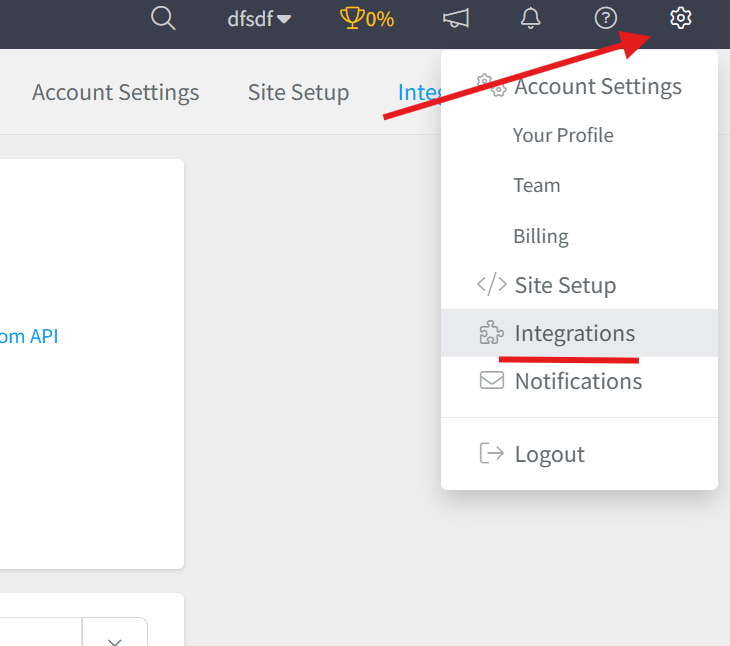
- From your dashboard, click Settings.
- Navigate to Integrations.
Step 2: Select the Braze Integration
- Browse or search for Braze in the integrations list.
- Click on the Braze Integration.
- Give your integration a clear name.

Step 3: Retrieve Your API Credentials from Braze
To connect Braze to SegMetrics, you'll need two pieces of information: your Instance URL and your API Key.
Finding Your Instance URL
- Log in to your Braze account.
- Look at your dashboard URL in your browser's address bar (e.g.,
dashboard-01.braze.comordashboard-03.braze.eu). - Match your dashboard URL to the corresponding REST Endpoint using the table below:
| Dashboard URL | REST Endpoint (Instance URL) |
|---|---|
| dashboard-01.braze.com | https://rest.iad-01.braze.com |
| dashboard-02.braze.com | https://rest.iad-02.braze.com |
| dashboard-03.braze.com | https://rest.iad-03.braze.com |
| dashboard-04.braze.com | https://rest.iad-04.braze.com |
| dashboard-05.braze.com | https://rest.iad-05.braze.com |
| dashboard-06.braze.com | https://rest.iad-06.braze.com |
| dashboard-08.braze.com | https://rest.iad-08.braze.com |
| dashboard-01.braze.eu | https://rest.fra-01.braze.eu |
| dashboard-02.braze.eu | https://rest.fra-02.braze.eu |
- Copy the REST Endpoint that matches your dashboard URL. This is your Instance URL.
Note: If your dashboard URL is not listed above or you're unsure which endpoint to use, contact Braze support or open a support ticket for assistance.
Creating Your API Key
- From your Braze dashboard, click on Settings in the left navigation menu.
- Navigate to APIs and Identifiers.
- Select the API Keys tab.
- Click Create New API Key (or Create API Key).
- Configure your API key:
- Name: Give your API key a descriptive name (e.g., "SegMetrics Integration").
- Permissions: Select the appropriate permissions for the integration. At minimum, you'll need:
- User data permissions (to track user information)
- Campaign/Canvas data export permissions
- Email/messaging permissions
- IP Allowlist (Optional): For added security, you can specify which IP addresses are allowed to use this key. Leave blank if you want to allow all IPs.
- Click Save to create the API key.
- Copy the API Key identifier that appears. You won't be able to view this key again after leaving the page.
Important: Store this API key securely. It provides access to your Braze account data and should not be shared publicly. For security reasons, you cannot edit permissions after creating an API key. If you need to change permissions, you'll need to create a new key.
Step 4: Connect Braze to SegMetrics
- Return to your SegMetrics integration setup window.
- Paste your Instance URL (REST Endpoint) into the designated field.
- Paste your API Key into the API Key field.
- Click Connect or Authorize to establish the connection.
- SegMetrics will verify your credentials and connect to your Braze account.

Once connected, SegMetrics will begin syncing your Braze data, including campaign performance, user engagement metrics, and messaging data.
Frequently Asked Questions
Q: What are the benefits of connecting Braze to SegMetrics?
A: Connecting Braze to SegMetrics gives you deeper insights into your customer engagement campaigns, accurate revenue attribution, and full customer journey tracking, helping you understand which email campaigns, push notifications, in-app messages, and multi-channel strategies drive the most engagement, conversions, and revenue for your business.
Q: What API credentials do I need to connect Braze to SegMetrics?
A: You'll need two credentials from your Braze account: your Instance URL (REST Endpoint) and an API Key. The Instance URL is determined by matching your Braze dashboard URL to the corresponding REST endpoint. The API Key can be created by navigating to Settings → APIs and Identifiers → API Keys in your Braze dashboard.
Q: How do I complete the connection between Braze and SegMetrics?
A: Once you have your Braze Instance URL and API Key, go to Settings → Integrations in SegMetrics, select the Braze integration, give it a clear name, paste in your Instance URL and API Key into the corresponding fields, then click Connect or Authorize to finalize the setup.
Q: What can I track once Braze is connected to SegMetrics?
A: With the integration active, you can track how your Braze campaigns tie directly to revenue, monitor customer engagement across email, push notifications, in-app messages, and other channels, analyze campaign performance and conversion rates, track customer journeys from first touchpoint through conversion, and gain clearer attribution across your marketing funnels and revenue streams.
Q: Can I use the same Braze API key for multiple integrations?
A: Yes, you can use the same API key to connect Braze to multiple platforms or tools. However, for better security and tracking, it's recommended to create separate API keys for different integrations. This allows you to easily identify which integration is making API calls and revoke access to specific integrations if needed. Remember that you cannot edit API key permissions after creation, so you'll need to create a new key if you need to adjust permissions.