
Call Tracking Metrics
Connect Call Tracking Metrics to SegMetrics to unlock deeper insights, accurate revenue attribution, and full customer journey tracking. Gain clarity on the KPIs that matter most in your call-driven marketing funnels.
Step 1: Access Integrations in SegMetrics
- Log in to your SegMetrics account.
- From your dashboard, click Settings.
- Navigate to Integrations.
-
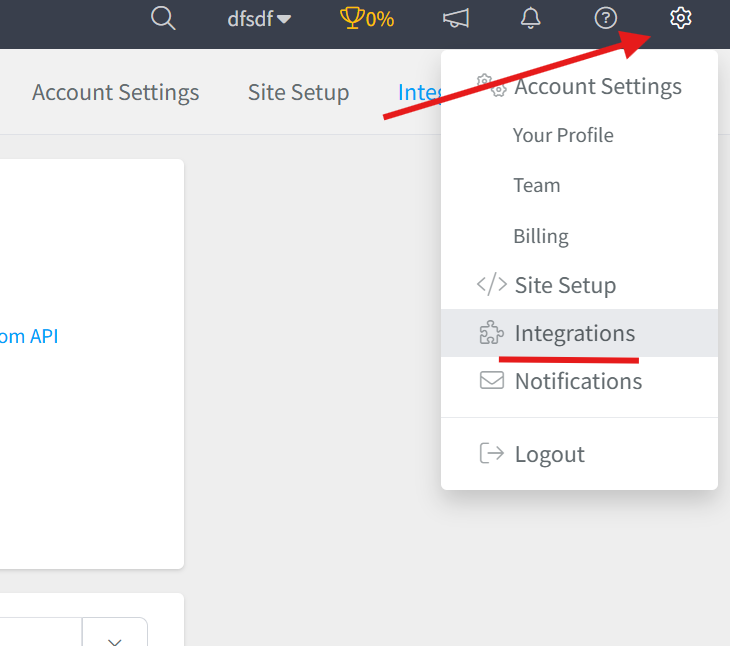
Step 2: Select the Call Tracking Metrics Integration
- Browse or search for Call Tracking Metrics in the integrations list.
- Click on the Call Tracking Metrics Integration.
- Give your integration a clear name.

Step 3: Retrieve Your API Credentials from Call Tracking Metrics
- Log in to your Call Tracking Metrics account.
- Click Settings in the top right corner of the dashboard.
- Your Account ID is displayed below your account name in the Settings area. Copy it.
- Click Account Settings, then navigate to API Integration in the left-hand menu, or scroll down to find the section.
- Click Enable API Access.
- Copy your Access Key from the screen.
- Click Show Secret Key to reveal and copy your Secret Key.
Note: Store your Secret Key in a safe place before navigating away, as it will not be shown again without clicking Show Secret Key. If your keys are ever compromised, you can reset them at any time from the API Integration section.
Step 4: Add Your API Credentials to SegMetrics
- Return to SegMetrics and enter your Account ID, Access Key, and Secret Key into the corresponding fields.
- Click Connect Call Tracking Metrics to finalize the setup.

Frequently Asked Questions
Q: What are the benefits of connecting Call Tracking Metrics to SegMetrics?
A: Connecting Call Tracking Metrics to SegMetrics gives you deeper insights into how your call-driven marketing efforts are contributing to revenue, accurate attribution across your funnels, and a complete view of the customer journey from first touch through conversion.
Q: What credentials do I need to connect Call Tracking Metrics to SegMetrics?
A: You will need three credentials from your Call Tracking Metrics account: your Account ID, Access Key, and Secret Key. The Account ID is found in the top right of your Settings area, and the Access Key and Secret Key are both generated under Settings then Account Settings then API Integration.
Q: How do I enable API access in Call Tracking Metrics?
A: Navigate to Settings then Account Settings in your Call Tracking Metrics dashboard. Find the API Integration section and click Enable API Access. Your Access Key will be displayed immediately, and you can reveal your Secret Key by clicking Show Secret Key.
Q: Can I reset my API keys if they are compromised?
A: Yes. Navigate to the API Integration section in your Call Tracking Metrics Account Settings and scroll to the bottom. Click Reset API Access and confirm. New keys will be generated immediately. Note that resetting your keys will invalidate the previous ones, so you will need to update the credentials in SegMetrics afterward.
Q: How do I complete the connection between Call Tracking Metrics and SegMetrics?
A: Once you have your credentials, go to Settings then Integrations in SegMetrics, select the Call Tracking Metrics integration, give it a clear name, enter your Account ID, Access Key, and Secret Key into the corresponding fields, and click Connect Call Tracking Metrics to finalize the setup.
Q: What can I track once Call Tracking Metrics is connected to SegMetrics?
A: With the integration active, you can track how your inbound calls and call-driven campaigns tie directly to revenue, monitor customer journeys from first touch through conversion, and gain clearer attribution across your paid, organic, and direct marketing channels.