
Snapshots
Still pulling the same report every Monday morning? There's a better way. Snapshots let you schedule your most important dashboards to send automatically — so the data comes to you and your team.
Watch this video to learn how to setup a new Snapshot:
Creating a Snapshot
-
Click the Tools button in the bottom left corner of the SegMetrics app.
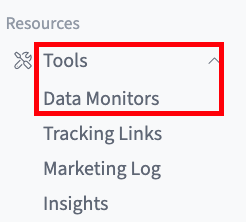
- Select Data Monitors from the Tools menu.
-
From there, click Snapshots at the top left of the screen.
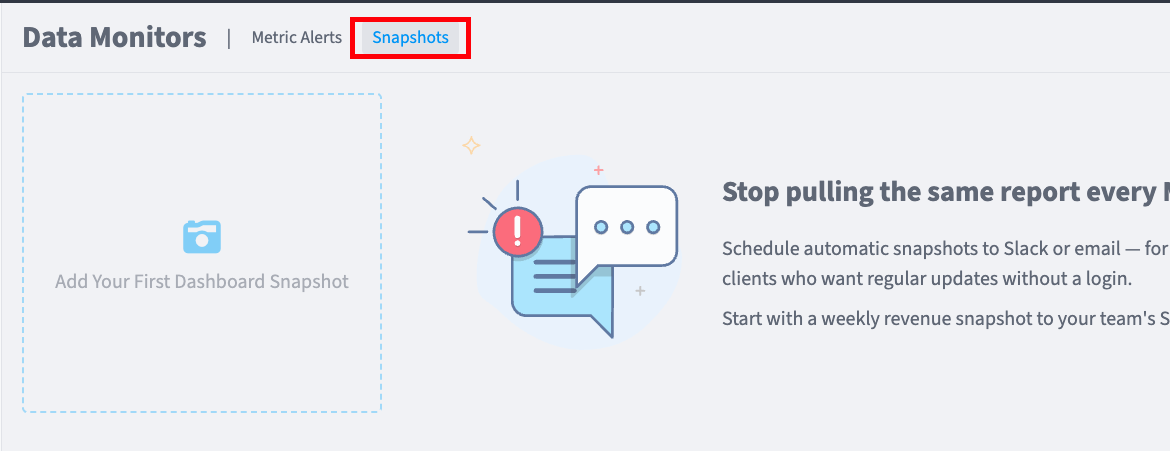
- Click New Snapshot.
Configure Your Snapshot
Once you've started creating a Snapshot, you'll configure the specific conditions that will trigger notifications. Work through each field from top to bottom:
Name
Give the Snapshot a descriptive name. If this is for a Monday morning ad performance review, you could call it something like "Monday Morning Ad Performance."

Dashboard
Here is where you'll select a dashboard you've already created. The purpose of these snapshots are to send the dashboard to your team.
Format
The format is PDF by default, but you can opt to send a PNG of the dashboard if you'd like. The benefit of the PDF is that your team members can download the PDF to their devices.
Status
Status is Active by default. This means the snapshot will continue to notify while set to Active. To stop notifications, change this to Paused. You can resume a snapshot at anytime.
Frequency
Set how often you'd like for the Snapshot to be sent.
- Day: the snapshot will be sent out daily at a specified time
- Week: select the days and time of the week you'd like to send the snapshot
- Month: select the calendar day of the month and time you'd like to send the snapshot
Send To
Here is where you can create a new notification group. You have two options for notification destinations, email or Slack channels.
Subject
Create a subject line for the notification. Make this descriptive so that recipients know exactly what it is at a glance.
Message
Create a short and descriptive message to describe what recipients are receiving.
Send Shareable Link
When enabled, the notification will also include a link to a shared version of the dashboard. Learn more about sharing a dashboard here.
Saving Your Snapshot
Once all fields are configured, click the Save button in the bottom-right corner to activate your metric alert.
Setting Up Slack Notifications
Slack notifications are optional and allow you to receive snapshots directly in your Slack workspace channels. This is useful for keeping your team informed in real-time without requiring them to log into SegMetrics.
Prerequisites for Slack Notifications
Before you can send Snapshots to Slack, you must:
- Have a Slack workspace connected to your SegMetrics account
- Configure the Slack integration in your SegMetrics workspace settings
-
Have appropriate permissions to send messages to Slack channels

Configuring Slack Recipients
When setting up or editing a snapshot:
- In the Send to dropdown, you'll see Slack channel options listed alongside team member names.
- Slack channels are typically identified with a format like "Keith Slack," "Ian's Slack," or your custom channel names.
- Select one or more Slack destinations where you want snapshots delivered.
- Click Save to enable Slack notifications for this snapshot.
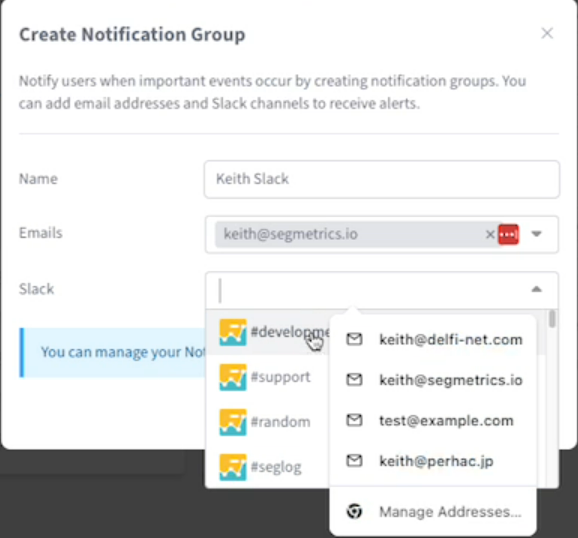
Snapshots sent to Slack will include the Snapshot name, current value, threshold information, and a link back to SegMetrics for more details.
FAQs
Q: Can I create multiple snapshots for the same dashboard?
A: Yes, you can create multiple snapshots for the same dashboards to send as different formats, on different days, and to different channels.
Q: How often are snapshots alerts checked?
A: Snapshots are checked daily. SegMetrics evaluates your configured conditions once per day and sends notifications when conditions such as send times are met.
Q: Can I pause a snapshot without deleting it?
A: Yes, you can set the Status field to "Paused" when editing a snapshot. This will pause the snapshot without deleting it, allowing you to reactivate it later by changing the status back to "Active."
Q: What happens when an snapshot is triggered?
A: When a snapshot condition is met, notifications are sent based on your "Send to" configuration. Recipients will receive the snapshot based on the notification configurations you've set. If Slack is configured, a message will be posted to the designated Slack channel. The alert card on your dashboard will also update to reflect the current status.
Full Transcription:
Still pulling the same report every Monday morning? There's a better way. Snapshots let you schedule your most important dashboards to send automatically — so the data comes to you.
Setting one up takes about 30 seconds. Give your snapshot a name, pick the dashboard you want to send, and choose your format, PDF or PNG — PDF works great for sharing. Then set your frequency: daily, weekly, or monthly, whatever makes sense for your team. Finally, choose where it goes — you can email it to yourself, your team, or drop it straight into a Slack channel. Hit Save, and you're done. You can even add a subject line and message, as well as send a shareable link to the dashboard itself.
Here's a game-changer for agencies or teams: you can send snapshots to clients who don't even have a SegMetrics login. Set up a weekly revenue summary to email directly to your client every Friday afternoon. They get a clean, professional snapshot with the numbers they care about — no logins, no digging through dashboards.
Your most important metrics should never depend on someone remembering to check them. Set up a snapshot once, and your whole team stays in the loop automatically — whether that's a Monday morning revenue summary or a weekly ad performance update.