
Pardot
SegMetrics gives you the ability to analyze your Pardot campaign performance and connect it to other data sources to find the sources that lead to clients and how different accounts respond to each touchpoint.
Note: This integration does not provide tag dates. SegMetrics will record the date a tag was first seen rather than the date it was originally applied.
Integration Overview and Setup
SegMetrics connects spend from your ad platforms and purchases from your payment processor to email addresses in Pardot. You don't need to import orders or tag people - they just need to be in your Pardot account.
Step 1: Get Your Business Unit ID
- Login to Salesforce using the same account you use for Pardot
- Navigate to Setup > Search "Pardot" > Pardot > Analytics > Pardot Account Setup
- Copy the Business Unit ID
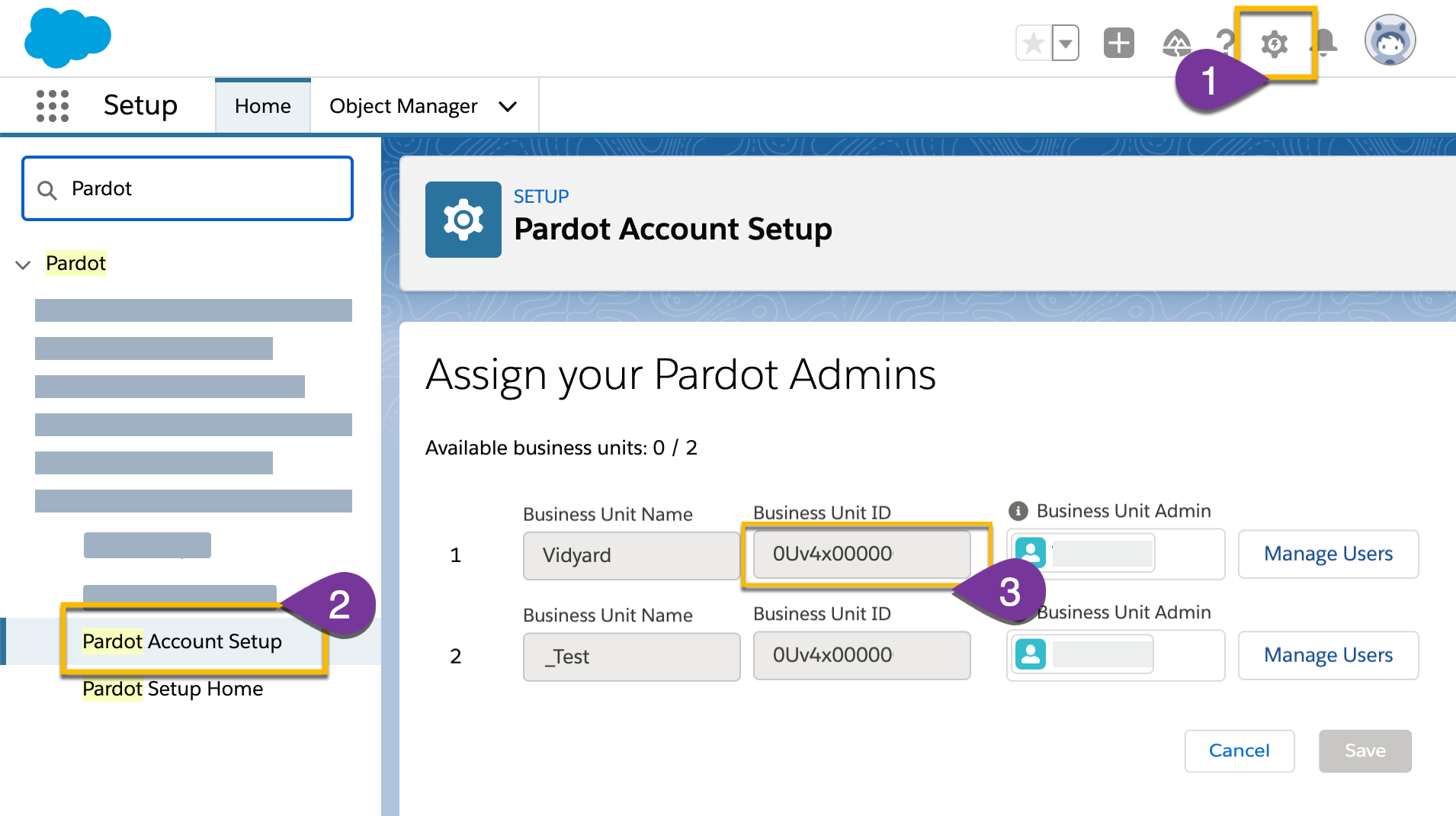
Note: If you have multiple business units, use the ID for the account you want to connect.
Step 2: Create OAuth App
- Go to Salesforce Setup
- Navigate to Platform Tools > Apps > App Manager > New connected App
- Fill in basic information (app name, API name, contact email)
- Under API (Enable OAuth Settings):
- Check Enable OAuth Settings
-
Callback URL: https://app.segmetrics.io/integration/auth-callback/pardot
Move these scopes to Selected OAuth Scopes:
- Manage Pardot services (pardot_api)
- Access the identity URL service (id, profile, email, address, phone)
- Perform requests at any time (refresh_token, offline_access)
- Click Save > Continue (wait 2-10 minutes for changes to take effect)
- Copy the Consumer Key and Consumer Secret
Step 3: Connect in SegMetrics
- In SegMetrics, click the gear icon > Integrations
- Under CRM, click Connect next to Pardot
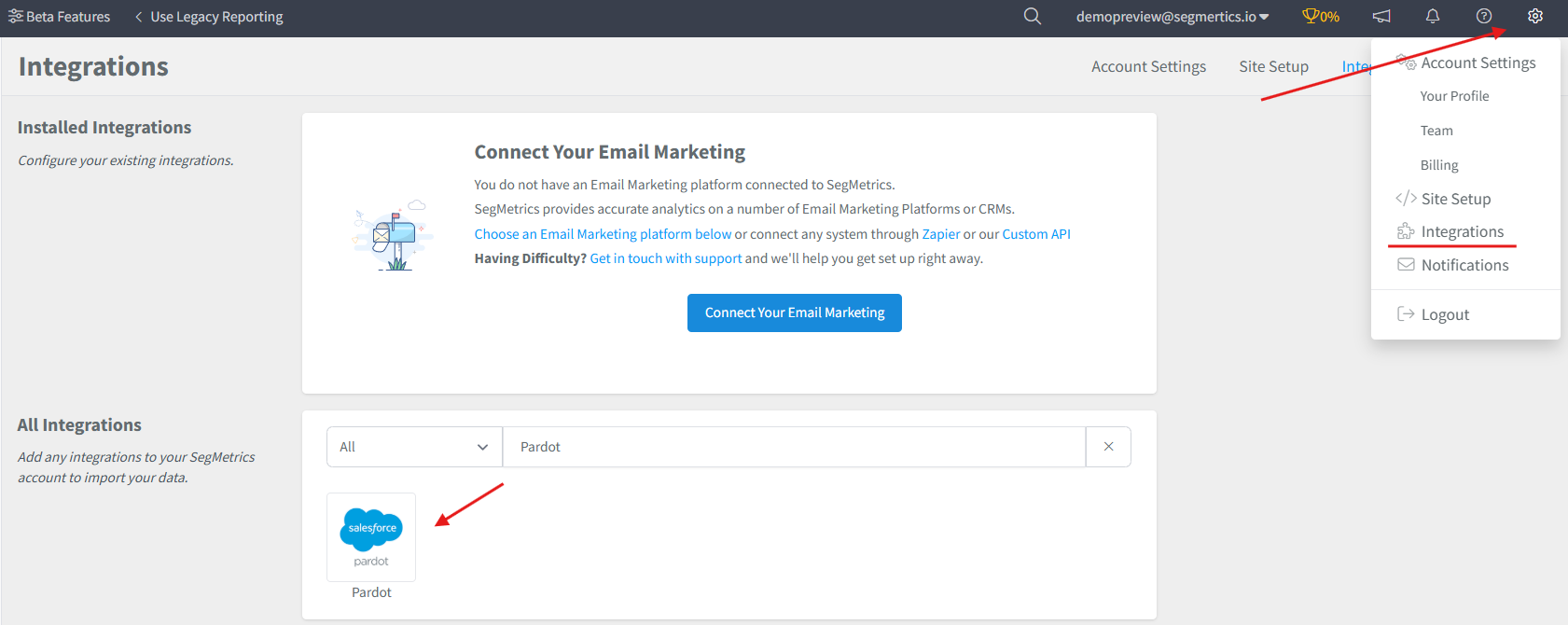
- Enter your Business Unit ID, Consumer Key, and Consumer Secret
- Click Connect
Historical Data: All historical data syncs when you first connect. SegMetrics stores this data in our database to accumulate more historical information over time.
Payment Data: Since Pardot doesn't track payments natively, SegMetrics connects payment information from your payment processor to Pardot contacts using email addresses.
Creating Reports with Pardot Data
Use these SegMetrics reports to analyze different aspects of your Pardot performance:
- Acquisition Report → Leads are contacts created in a date range. Shows new lead metrics and lead generation performance
- Advertisement Report → This is for analyzing the effectiveness of your paid ads. This will show cost per lead, cost to acquire customer, and ROAS.
- Nurture Report → Leads are contacts that received a tag or were added to a list in a date range. Tracks email sequences and nurturing campaigns
- Engagement Report → Leads are contacts that visited a funnel page or engaged with emails in a date range. Shows website and email interaction metrics
- Orders Report → Leads are contacts that made a purchase in a date range. Displays revenue and purchase metrics
- Subscriptions Report → Leads are contacts that started a subscription in a date range. Tracks subscription product metrics
Frequently Asked Questions
Q: What time zone is Pardot data synced in?
A: UTC. SegMetrics reports use the timezone set in your Account Settings.
Q: How do I track email clicks from Pardot?
A: Add seg_cid=*|UNIQID|* to your email links: http://example.com/?seg_cid=*|UNIQID|* . This tells SegMetrics who clicked even on different devices. See our tracking fidelity guide for more details.
Q: Do I need the SegMetrics tracking pixel for Pardot data?
A: No, SegMetrics will still gather UTM data without it. The pixel provides additional detail about specific link clicks. Learn more in our URL builder walkthrough.
Q: Can I connect multiple Pardot business units?
A: Yes, create separate integrations for each using their specific Business Unit ID.
Q: What if my OAuth credentials expire?
A: SegMetrics automatically refreshes tokens. If this fails, you'll get a notification to reconnect using the same steps above.