
Get Response
SegMetrics gives you the ability to analyze your GetResponse campaign performance and connect it to other data sources. With that information, you can easily segment that data into your leads, find the automation triggers that convert to customers, understand where your most valuable leads are coming from, and more!
Note: This integration does not provide tag dates. SegMetrics will record the date a tag was first seen rather than the date it was originally applied.
Integration Overview
SegMetrics imports your contacts, custom fields, tags, orders and more directly from GetResponse. SegMetrics is kept up to date with the most recent information in your GetResponse account, to make sure you always have access to the information you need.
If you have a payment processor that doesn't connect with GetResponse natively, we can connect that information together using the email addresses in GetResponse. You don't need to import the orders or tag people in a special way: they just need to be in your GetResponse account!
Connect GetResponse to SegMetrics
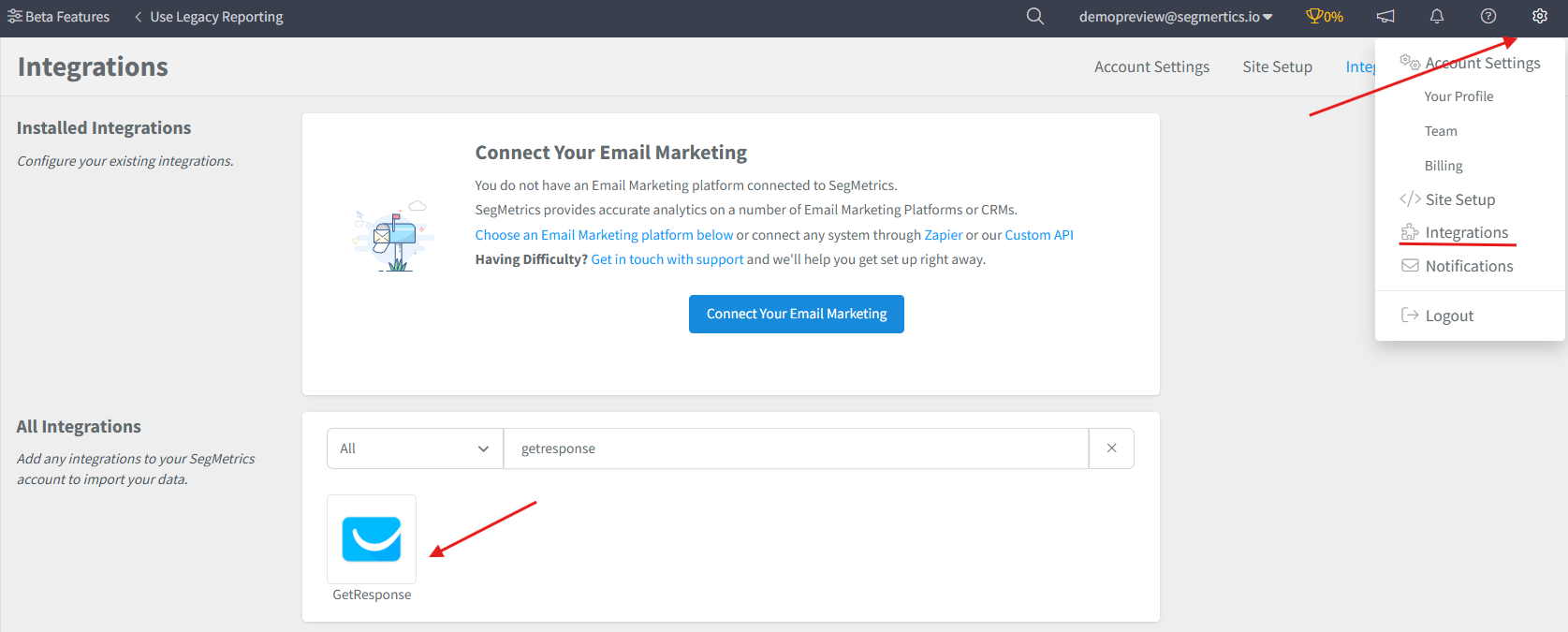
- Click on the gear icon in the top right corner and then click "Integrations"
- Once you're on the Integrations page, select the CRM list and click on Connect next to GetResponse
-
This will open the Activation window, which is where you will be prompted to enter your API key
- To get your API Key, go to your GetResponse API settings page, and paste the key in the activation window. You can find more on finding the API key on this GetResponse help document.
Connect Payment Information
When you connect your payment integration, we'll automatically connect contacts in your GetResponse account by matching the email address in the processor with the contacts in GetResponse.
We recommend using whichever payment processor can act as your single source of truth.
Historical Data Sync
When you connect a new GetResponse integration, all historical data from your GetResponse account is synced.
Pro Tip: Once GetResponse is connected and actively syncing data, we store the data that's collected in our own database. This allows us to accumulate more data over time as more data syncs are made so that you can report on more historical GetResponse data in your SegMetrics reports.
Set Up Email Link Tracking
To improve tracking of your GetResponse email campaigns, add the contact's email to your links with "email=[[contact.email]]".
Here is what the finished link should look like: http://example.com/?email=[[contact.email]]
That will tell SegMetrics who is visiting the page, even if they're on a different device or have opted in before you started with SegMetrics.
You can find more information on configuring your email links in our Improving Tracking Fidelity Page, and GetResponse's documentation on mail merge fields.
Frequently Asked Questions
Q: How long does it take for GetResponse data to sync with SegMetrics?
A: Initial sync begins immediately after connection. All historical data from your GetResponse account is imported during the first sync which usually takes a few hours. GetResponse data is synced in UTC, and SegMetrics reports on your data based on the timezone you set in your Account Settings.
Q: What data is imported from GetResponse?
A: SegMetrics imports your contacts, custom fields, tags, email campaign data, automation sequences, and any e-commerce data. Payment information is automatically matched by email address when you connect your payment processor.
Q: Do I need to install tracking pixels to get GetResponse data?
A: You do need a tracking pixel to provide information about exactly which links subscribers clicked for ads, email broadcasts, or campaigns.
Q: Can I track sales and client invoices from GetResponse?
A: For tracking client invoices and cart sales, using a funnel report might be preferable, as you can set out each step that a client should take through the process (sales call, signup, invoice, payments, etc). This gives you more detailed insight into your sales process. To learn how to quickly create a funnel report, check out our funnel reporting walkthrough.
Q: Where do I find my GetResponse API key?
A: You can find your GetResponse API key by logging into your GetResponse account and navigating to Account Settings > Integrations & API > API. Make sure you have the necessary permissions to access API settings in your GetResponse account.
Still need help? Contact us at: support\@segmetrics.io