
SubStack
Learn how to send the leads you collect in your SubStack account into your SegMetrics account. Not only will you be able to get your leads, you'll also get tracking data for better insight into where your leads are coming from.
Install SegMetrics Tracking Pixel
To accurately track the lead channels to your SubStack publications, you can install your SegMetrics tracking pixel using one of two methods:
Method 1: Direct Integration (Recommended)
- Get your SegMetrics tracking pixel from Site Setup in your SegMetrics account
- In SubStack, go to Dashboard > Settings > Analytics
- Enter your SegMetrics tracking code in the appropriate field
- Click Save
Method 2: Google Tag Manager
If direct integration doesn't work, you can use Google Tag Manager:
- Follow this article to get your tracking pixel installed as a new tag to GTM
- With your GTM ready, head over to your SubStack Writer Dashboard
- From the Writers Dashboard, click Settings
- Click Analytics
- Enter your GTM container ID into the Google Tag Manager ID field
Export and Import SubStack Leads
SubStack doesn't have a native API to manage your subscriber list, but SegMetrics allows you to easily import your subscriber information from a standard SubStack data export.
Export Leads from SubStack
- From your SubStack Writer Dashboard, click Subscribers
- Click Export
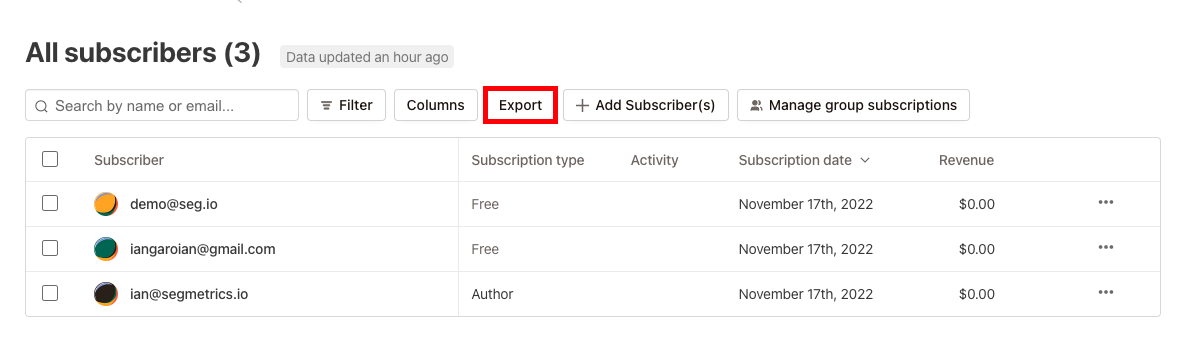
- Download the export to your computer
Import Leads into SegMetrics
- Login to SegMetrics
- Head over to your Integrations page
- Click the gear icon on the CRM/Email tool integration
-
Click Upload Historical Data
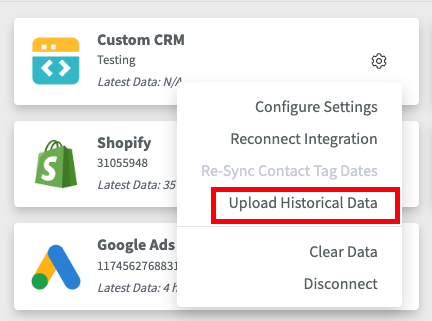
- Click the option to upload Contacts
- Select the CSV from SubStack
- Map the fields with the appropriate options:
- Email = Email
- Date Created = Subscription Date
- First Name = Name
- Click Continue
How to Use SubStack Data in SegMetrics Reports
Report Types Available:
- Acquisition tracks newly created contacts
- Advertisement tracks ad performance
- Nurture tracks contacts who received tags or list additions
- Engagement tracks contacts who visited pages or engaged with emails
- Orders tracks contacts who made purchases
- Subscriptions tracks contacts who started subscriptions
Frequently Asked Questions
Q: Do I need Google Tag Manager to track SubStack visitors?
A: No, SubStack now offers direct analytics integration in their settings. You can add your SegMetrics tracking pixel directly without requiring Google Tag Manager.
Q: How often should I export and import my SubStack subscribers?
A: This depends on your growth rate. For most publications, monthly exports are sufficient, but high-growth publications may want to do this weekly.
Q: Will the tracking pixel slow down my SubStack publication?
A: No, the SegMetrics tracking pixel is lightweight and designed to load asynchronously without affecting your publication's performance.
Q: Can I track both free and paid subscribers?
A: Yes, when you export your subscriber list from SubStack, it includes both free and paid subscribers, and you can import all of this data into SegMetrics.
Q: What happens if I miss importing subscribers for a few weeks?
A: Nothing is lost permanently. When you do your next export and import, all subscribers (including those from missed weeks) will be included in the export and imported into SegMetrics.